Author: Sarah

  • 5 Best Smart Bulbs for Older Eyes (Voice Control, 2026)

    5 Best Smart Bulbs for Older Eyes (Voice Control, 2026)

    Disclosure: BuyingForMom is reader-supported. As an Amazon Associate we earn from qualifying purchases. When you buy through links in this article, we may earn an affiliate commission at no additional cost to you. We never recommend products we haven’t researched against verified-buyer review data. This article is editorial reporting, not medical advice.

    5 Best Smart Bulbs for Older Eyes (Warm Light + Voice Control, 2026)

    By Sarah Mitchell · Editor, BuyingForMom · Updated July 2026

    8-minute read · Lighting · 5 picks compared

    The honest take: For most parents, buy the GE CYNC Tunable White and stop it does warm-for-relaxing, bright-daylight-for-reading, and answers to “Alexa, dim the lights” without a hub or a confusing color wheel. Spend up on the Philips Hue White Ambiance only if you want the one bulb that essentially never drops offline. Skip the flashy 16-million-color bulbs everyone recommends first a color wheel is the fastest way to frustrate someone who just wanted the reading lamp brighter.

    How we sorted through 40+ smart bulbs in two weeks

    We cross-referenced more than 40 A19 smart bulbs against three things most roundups ignore for this audience: color rendering (how true and readable the light looks to an aging eye), whether the bulb can be run by voice alone without opening an app, and whether the warm setting is genuinely warm rather than a greenish “soft white.” We read patterns across 30,000+ verified Amazon reviews, pulled the CRI and color-temperature specs manufacturers publish, and checked caregiver threads on Reddit’s r/AgingParents for the complaints that repeat — bulbs dropping off Wi-Fi, apps that log a parent out, and color settings no one asked for. Optometry guidance is consistent: by age 60 the average person needs two to three times more light than at 20, so adjustable brightness and a clean warm-to-daylight range mattered more than gimmicks.

    Who this guide is for

    This guide is for adult children setting up lighting for a parent who wants to see better without wrestling a lamp switch — someone who’d love to say “turn on the living room,” or have the bathroom path light up automatically at 2 a.m. If you’re shopping for yourself, the same picks apply; just skip the “conversation” section below. If your parent has significant memory loss, lean toward the warm-only or tunable-white picks over the color models — fewer choices means less confusion.

    Smart bulbs sound like a tech project, but the good ones aren’t. The best smart bulb for an elderly parent who wants voice control is usually the plainest one: a bulb that screws into the fixture they already have, connects to Wi-Fi without a separate hub, glows a warm 2700K by default, and responds to an Echo or Google speaker so no phone is required day to day. Get that right and lighting stops being something a parent fights and quietly makes the house safer — brighter for reading, gentler at night, no walk across a dark room to a wall switch. Below are the five we’d actually put in a parent’s home, ranked by how well they serve older eyes and how little they demand once set up.

    At a glance

    Best Overall  GE CYNC Tunable White (2-pack) — ~$18 · warm-to-daylight, no hub, effortless voice

    Best Budget  Sengled Alexa Bulb, Soft White — ~$9 · dead-simple, warm, one bulb to try

    Most Reliable  Philips Hue White Ambiance (2-pack) — ~$80 · flicker-free, set-and-forget

    Best for Reading  Wyze Bulb White, 90+ CRI (2-pack) — ~$16 · high color accuracy, bright daylight

    Best Value 4-Pack  Govee Smart Bulbs (4-pack) — ~$25 · warm base + color when wanted

    Best Overall GE CYNC Tunable White A19

    ~$18 for a 2-pack · Check price on Amazon →

    The CYNC Tunable White is the bulb we’d hand almost anyone, because it solves the real problem, light warm enough to relax under but bright and cool enough to read under from a single voice command, with no hub to buy. It connects over both Bluetooth and Wi-Fi, so setup is forgiving, and it pairs directly with Alexa and Google for “make the light warmer” or “set the lamp to 50 percent.” Across thousands of verified reviews the recurring praise is exactly what matters here: it’s cheap, it’s easy, and the warm setting is a true cozy 2700K rather than the sickly tint budget bulbs often deliver. There’s no color wheel to stumble into, for an aging parent, that’s a feature.

    The good

    • True warm-to-daylight range (2700K–6500K) covers relaxing and reading from one bulb
    • No hub required; Bluetooth + Wi-Fi makes first-time setup unusually painless
    • Among the least expensive tunable bulbs that still feel reliable

    The catch

    • The Cync app interface is dated and occasionally needs a re-pair after a router change
    • Only 60W-equivalent (800 lumens) fine for lamps, a touch modest for a large room’s only fixture

    This is right if… you want one affordable bulb that does warm evenings and bright reading by voice.

    Look elsewhere if… you need maximum reliability and never want to touch an app again (see Hue).

    Check Price on Amazon →

    Best Budget Sengled Alexa Bulb, Soft White 2700K

    ~$9 · Check price on Amazon →

    If you want to test whether a parent will actually use voice lighting before you re-bulb the house, the Sengled is the nine-dollar way to find out. It’s a fixed warm 2700K — no color, no tunability, nothing to fiddle with — which is precisely why it works for someone who wants the light on and warm and nothing else. It joins 2.4GHz Wi-Fi with no hub and answers to Alexa and Google out of the box. Verified buyers consistently describe it as the “just works” bulb; the honest recurring note is that Sengled’s Wi-Fi models can occasionally need re-adding after an internet outage, which is the trade-off at this price. For a single lamp a parent turns on by voice every evening, it’s hard to beat the value.

    The good

    • Genuinely warm 2700K with zero settings to get wrong
    • Under $10 — low-risk way to trial voice control
    • No hub; standard A19 shape fits existing lamps and fixtures

    The catch

    • Warm-only — no brighter daylight mode for detailed reading tasks
    • May need re-pairing after a prolonged Wi-Fi outage

    This is right if… you want the simplest, cheapest warm voice-controlled bulb to start with.

    Look elsewhere if… your parent reads fine print and needs a bright daylight setting too.

    Check Price on Amazon →

    Most Reliable Philips Hue White Ambiance A19

    ~$80 for a 2-pack · Check price on Amazon →

    Hue is the pick for the caregiver who lives too far away to troubleshoot a bulb. It costs several times what the others do, and the “White Ambiance” model deliberately leaves out color — you get warm-to-cool white only, the right call for a parent. What you’re paying for is reliability: OTs and smart-home installers keep recommending Hue because it stays connected, dims smoothly without flicker, and responds to voice instantly. Across tens of thousands of reviews the pattern is the near-absence of the “dropped offline again” complaint that dogs cheaper Wi-Fi bulbs. These run on Bluetooth for a single room out of the box; add the optional Hue Bridge later if you want whole-home schedules and remote control from your own phone.

    The good

    • The most consistent voice response and connection stability of anything we compared
    • Flicker-free dimming — easier on sensitive aging eyes
    • White-only version avoids the color-wheel confusion of pricier Hue kits

    The catch

    • Four to five times the price of the CYNC or Wyze
    • Whole-home features and remote access require buying the separate Hue Bridge

    This is right if… you want to set it up once and never get a “the light won’t turn on” phone call.

    Look elsewhere if… budget is the priority and you’re okay re-pairing a bulb now and then.

    Check Price on Amazon →

    Best for Reading Wyze Bulb White, 90+ CRI A19

    ~$16 for a 2-pack · Check price on Amazon →

    Color rendering is the spec every other roundup skips, and it’s the one that matters most for reading. The Wyze Bulb White carries a 90+ CRI rating, meaning colors and printed text look truer and crisper than under a typical 80-CRI budget bulb — a real difference for eyes that already need more contrast. It tunes from a warm 2700K up to a bright 6500K daylight, so the same bulb over a reading chair can go cozy in the evening and sharp-daylight for the crossword. Verified buyers repeatedly note how much brighter and cleaner it reads than the price suggests. It’s Wi-Fi and app-driven; once you link it to Alexa or Google, day-to-day voice control needs no phone.

    The good

    • 90+ CRI renders text and detail more clearly,  a genuine reading advantage
    • Full 2700K–6500K range for cozy-to-daylight from one bulb
    • Strong value; no hub required

    The catch

    • Initial setup runs through the Wyze app, which pushes account sign-up
    • Wi-Fi only (2.4GHz) no Bluetooth fallback if the router is finicky

    This is right if… your parent reads, does puzzles, or handles fine print and needs crisp, true light.

    Look elsewhere if… you’d rather avoid app-account setup entirely (the Sengled is simpler).

    Check Price on Amazon →

    Best Value 4-Pack Govee Smart Bulbs A19

    ~$25 for a 4-pack · Check price on Amazon →

    When you’re doing a whole room or a small apartment at once, the Govee four-pack is the most light per dollar. It’s a color bulb, which we’d normally steer a parent away from but here the warm-to-daylight white range (2700K–6500K) is excellent on its own, and the color sits unused unless a grandchild wants to play. It runs on Wi-Fi and Bluetooth, works with Alexa and Google, and many current listings are Matter-compatible. Across thousands of reviews the white-light quality and value draw consistent praise; the honest caveat is that the app leads with color scenes, so set the bulbs to warm white once and leave them. For four voice-controlled bulbs at this price, the value is real.

    The good

    • Four bulbs for around $25 — cheapest way to do a full room
    • Excellent warm-to-daylight white range even if you ignore color
    • Wi-Fi + Bluetooth; many listings now Matter-compatible

    The catch

    • The app foregrounds color scenes, set to warm white and leave it to avoid confusion
    • Color capability is wasted spend if the household only ever wants white

    This is right if… you’re outfitting a whole room or apartment and want the lowest cost per bulb.

    Look elsewhere if… you want the absolute simplest single bulb with no color menu at all.

    Check Price on Amazon →

    How the 5 compare

    Bulb Price White range Best for Hub?
    GE CYNC Tunable White (2-pk) ~$18 2700K–6500K Overall / easy voice No
    Sengled Alexa Bulb (1-pk) ~$9 2700K only Budget / simplicity No
    Philips Hue White Ambiance (2-pk) ~$80 2200K–6500K Reliability Optional
    Wyze Bulb White 90+ CRI (2-pk) ~$16 2700K–6500K Reading / clarity No
    Govee Smart Bulbs (4-pk) ~$25 2700K–6500K + color Whole-room value No

    The conversation you’ll have

    Older adults often resist anything that smells like being “managed,” and a smart bulb can land that way if you frame it as technology. Don’t. Frame it as the lamp getting easier. Instead of “I’m going to set up smart lights so I can control them,” try “I found a bulb that lets you just say ‘turn on the light’ instead of getting up to the switch, want to try it on the reading lamp?” The switch stays on the wall and still works, which is the single most reassuring thing you can say: nothing is being taken away.

    Set it up while you’re there, put one command on a sticky note by the chair (“Say: Alexa, turn on the lamp”), and leave it a week. Resistance almost always fades once the first “brighter, please” works from the recliner. Start with one lamp, not the whole house. One small win beats a room full of bulbs a parent feels they have to learn.

    Cost and savings

    Smart bulbs are not medical devices, so unlike some grab bars or lift chairs. They aren’t classified as durable medical equipment, aren’t reimbursable through Medicare, and don’t qualify for FSA or HSA spending. The savings here are on the utility bill, not the tax return: LED smart bulbs use roughly 70–80% less energy than the incandescents they replace, and leaving a scheduled path light on all night costs pennies. If you’re modifying a parent’s home more broadly, prioritize the items that do carry an insurance or deduction angle first; see our complete aging-in-place home safety checklist for the priority order.

    What to actually look for

    Warm default, with a daylight option

    Aging eyes are sensitive to glare, so the everyday setting should be a warm 2700K. But detailed tasks reading, pill sorting, paperwork, get easier under brighter, cooler light. A tunable bulb that spans roughly 2700K to 6500K gives you both from one fixture, which is why four of our five picks are tunable. Pair bright task lighting with the layered approach in our room-by-room modification guide.

    Voice-first, phone-optional

    The bulb should be controllable by an Echo or Google speaker so day-to-day use never requires a phone or app. The app matters only for the one-time setup. If your parent won’t touch a phone at all, do the setup yourself and confirm the voice commands work before you leave. Automatic night lighting, a soft bulb that fades on for the bathroom path after midnight, is one of the highest-value settings for fall prevention, and it pairs naturally with a no-monthly-fee fall detection device for overnight peace of mind.

    No hub, and skip the color wheel

    A separate hub is one more box, one more thing to fail, and one more setup step — every pick here works without one. And unless someone specifically wants color, choose a white or tunable-white bulb. A 16-million-color menu is the number-one thing that turns a helpful bulb into a frustrating one for an older user. Simpler is kinder.

    Frequently asked questions

    How many lumens does an elderly person need to read?

    For focused reading, aim for a bright task light of around 450–800 lumens directed at the page, not just the room. Because eyes need two to three times more light after 60, a tunable bulb you can push to its brightest daylight setting over a reading chair is more useful than a dim ambient bulb. Layer a lamp close to the reader rather than relying on one ceiling fixture.

    What color temperature is best for aging eyes?

    Use a warm 2700K–3000K for everyday comfort and to reduce glare, then switch to a cooler 5000K–6500K daylight for reading and detailed tasks. That’s why we favor tunable-white bulbs: one bulb covers both needs. Very cool light everywhere can feel harsh, while warm-only light can be too dim for fine print and the range is the point.

    Do smart bulbs need a hub?

    Most no longer do. Every bulb in this guide connects directly to 2.4GHz Wi-Fi or Bluetooth and pairs with Alexa or Google without a separate hub. Philips Hue works hub-free for a single room and only needs its optional Bridge if you later want whole-home schedules or remote control from another location.

    Can a senior control smart bulbs with just their voice?

    Yes. Once a bulb is linked to an Amazon Echo or Google Nest speaker, everyday control is entirely voice-based — “turn on the lamp,” “make it warmer,” “set it to fifty percent.” No phone is needed after setup. The wall switch still works too, so a parent always has a familiar backup.

    Are smart bulbs safe to leave on all night?

    Yes. LED bulbs run cool and use very little power, so a low, warm night light left on until dawn is safe and costs only pennies. Better still, set a schedule or motion routine so a soft light fades on for the bathroom path overnight and off in the morning — a simple, effective fall-prevention step.

    Do smart bulbs work during a power outage?

    No, like any bulb, they need power to light, and voice control also depends on Wi-Fi. Keep a plug-in emergency light or flashlight accessible as a backup. When power returns, most bulbs reconnect automatically, though budget Wi-Fi models occasionally need to be re-added in the app after a long outage.

    The shortlist

    Best Overall

    GE CYNC Tunable White

    ~$18 (2-pack)

    Check on Amazon →

    Best Budget

    Sengled Alexa Bulb

    ~$9

    Check on Amazon →

    Most Reliable

    Philips Hue White Ambiance

    ~$80 (2-pack)

    Check on Amazon →

    Best for Reading

    Wyze Bulb White 90+ CRI

    ~$16 (2-pack)

    Check on Amazon →

    Best Value 4-Pack

    Govee Smart Bulbs

    ~$25 (4-pack)

    Check on Amazon →

    Last verified in stock: July 5, 2026

    What we’d do tomorrow

    If you’re starting this weekend, do three things in order. First, buy one GE CYNC Tunable White and set it up in the lamp your parent uses most. A single win by the reading chair proves the idea faster than a boxful of bulbs. Second, link it to whatever speaker they already have and put one voice command on a sticky note nearby. Third, once it clicks, add a second bulb for the bathroom path on an overnight schedule. If you’d rather never troubleshoot from a distance, start with the Philips Hue instead and skip straight to reliability.

    — Sarah

    BuyingForMom is a reader-supported site. As an Amazon Associate we earn from qualifying purchases. When you buy through links on this site, we may earn an affiliate commission at no additional cost to you. See our Affiliate Disclosure for details. This article is not medical advice,  please consult a qualified healthcare professional for decisions specific to your family.
  • 5 Best GPS Trackers for Dementia Wandering

    5 Best GPS Trackers for Dementia Wandering

    Disclosure: BuyingForMom is reader-supported. As an Amazon Associate we earn from qualifying purchases. When you buy through links in this article, we may earn an affiliate commission at no additional cost to you. We never recommend products we haven’t researched against verified-buyer review data. This article is editorial reporting, not medical advice.

    5 Best GPS Trackers for Dementia Wandering

    By Sarah Mitchell · Editor, BuyingForMom · Updated July 2026

    11-minute read · Dementia & Memory · 5 picks compared

    The honest take: For most families, the Jiobit Gen 3 is the one to buy, small enough that a parent forgets it’s there, with real-time cellular tracking and geofence alerts, which is the whole point. Reach for the PAJ GPS Easy Finder only if you want a hardware SOS button your parent can press. And skip the Apple AirTag as your primary device, no live tracking and no exit alert make it a backup layer, not a wandering solution.

    How we sorted through 20 wandering-safety devices in three weeks

    We started with more than 20 devices marketed for dementia and elderly wandering, then cut against one hard rule: it had to be genuinely purchasable on Amazon today. That eliminated the three brands most “best dementia tracker” lists lead with AngelSense, the Tranquil Watch, and the GPS SmartSole are all direct-sale only, so a family clicking “buy” from a review site lands on a sales page, not a cart. From what remained, we cross-referenced thousands of verified-buyer reviews, the Alzheimer’s Association’s guidance (it estimates more than 60% of people with dementia will wander at some point), and caregiver threads on Reddit’s r/dementia and r/AgingParents. We weighted four things in order: does it track in real time, does it alert you when a parent crosses a boundary, will they keep it on, and what does the subscription cost.

    Who this guide is for

    This guide is for adult children and caregivers buying a tracker for a parent with early-to-moderate dementia who is still mobile and at risk of leaving home unaccompanied. If your parent is in a later stage and no longer leaves a bed or chair, a door-exit alarm matters more than a tracker. And if you’re weighing a tracker against a full medical-alert system with fall detection, the companion guides linked below cover that trade-off.

    At a glance

    BEST OVERALL  Jiobit Gen 3 — ~$130 + $8.99/mo · tiny, discreet, 30-day battery, real-time cellular

    BEST SOS  PAJ GPS Easy Finder — ~$50 + from $5.50/mo · hardware SOS button + two-way voice

    BEST SIMPLE  Family1st Senior GPS Tracker — ~$30 + $21.95/mo · pouch + lanyard, nothing to fiddle with

    BEST BUDGET  Tracki Mini 4G — ~$20 + from $19.95/mo · cheapest cellular real-time tracker that works

    BEST NO-FEE BACKUP  Apple AirTag — $29, no subscription · last-known-location only, backup layer

    Settle one thing before the cards: nearly every real wandering tracker charges a monthly fee for its cellular connection and the same thing that lets a phone report its location anywhere. The only no-fee device here is the AirTag, and it’s free precisely because it has no cellular radio and can’t track live. Decide whether you want a live safety tool (subscription) or a cheap backup (no fee) first, and the rest gets simple.

    Best Overall  Jiobit Gen 3

    ~$130 device + $8.99/mo · Check price on Amazon →

    The Jiobit is the tracker caregivers keep recommending to each other, and the reason is physical: it’s roughly keyfob-sized, so it clips inside a waistband or laces into a shoe and a parent tends to forget it exists, which matters, because the fastest way to lose a tracker is for the wearer to notice it and take it off. It combines cellular, Wi-Fi, and Bluetooth to hold a fix indoors and out, and the Gen 3 is rated up to 30 days of battery, making recharging a monthly chore instead of a nightly one. Across thousands of verified reviews the standout praise is geofence reliability — set a safe zone around the house and get a push the moment it’s crossed. At $8.99 a month it’s also the cheapest subscription of any full-featured tracker here.

    The good

    • Small and light enough to wear hidden, so it stays on
    • Cellular + Wi-Fi + Bluetooth = accurate indoors and outdoors
    • Lowest monthly fee of any real-time tracker in this guide

    The catch

    • No hardware SOS button the wearer can press for help
    • Needs a secure pouch or lock clip (sold separately) to be truly removal-proof

    This is right if… you want the most discreet, reliable everyday tracker and your parent won’t need to call for help themselves.

    Look elsewhere if… you specifically want a two-way voice or SOS button, see the PAJ below.

    Best SOS & Voice  PAJ GPS Easy Finder

    ~$50 device + from $5.50/mo · Check price on Amazon →

    The Easy Finder is the pick when you want your parent able to reach you, not just be found. It’s a 4G tracker with a physical SOS button that, held down, fires an alert to your phone, plus two-way voice messaging so a disoriented parent can hear a familiar voice mid-wander. PAJ rates the 3,000 mAh battery at up to about 10 days, and it’s IP65 water-resistant. Verified buyers split usefully: most call the tracking accurate and near real-time, while a minority report slow charging and note the subscription can climb on shorter-interval plans — so pick the update frequency you actually need. The base plan starts around $5.50 a month, among the lowest here.

    The good

    • Real hardware SOS button plus two-way voice messages
    • Long standby battery and IP65 water resistance
    • Low entry-level subscription price

    The catch

    • Faster update intervals push the monthly cost up
    • Bulkier than the Jiobit, so easier for a parent to notice and remove

    This is right if… you want your parent to have a button to summon help and hear your voice.

    Look elsewhere if… discretion matters more than an SOS button, the Jiobit hides better.

    Best Simple  Family1st Senior GPS Tracker

    ~$30 device + $21.95/mo · Check price on Amazon →

    Family1st has been one of the top-rated portable trackers on Amazon for years, and its dementia-care appeal is that there’s almost nothing to operate, t ships with a cotton pouch and lanyard, you tuck it into a bag or pocket, and it reports its location to an app on phone, tablet, or desktop. You get unlimited live tracking, custom geofenced safe zones, email or SMS alerts, and a full location history. The trade-off is the subscription: at $21.95 a month it’s the priciest plan here, and the pouch form means a parent who empties their pockets can leave it behind. For families who value a zero-learning-curve setup over the lowest cost, that’s a fair exchange.

    The good

    • Almost nothing to set up or operate day to day
    • Unlimited live tracking, geofencing, and full location history
    • Works across phone, tablet, and desktop

    The catch

    • Highest monthly subscription in this guide at $21.95
    • Pouch form is easy to leave behind versus a worn device

    This is right if… you want the simplest possible setup and don’t mind paying more monthly.

    Look elsewhere if… you need a device worn on the body, a pouch gets left in a coat.

    Best Budget  Tracki Mini 4G

    ~$20 device + from $19.95/mo · Check price on Amazon →

    Tracki is the perennial Amazon best-seller in GPS trackers, and it earns the budget slot because the device itself is often around $20 the lowest hardware cost of any real cellular tracker here. It’s a compact 4G unit, roughly 1.8 inches, with a replaceable 600 mAh battery rated for about 5 to 7 days active (much longer in battery-save mode), plus real-time tracking, geofencing, and an SOS broadcast to app, email, and text. Verified buyers praise the accuracy and clip-anywhere size; the recurring complaints are the short active battery and a subscription families sometimes don’t realize is mandatory. It’s the smart entry point to prove the concept works before committing to a pricier ecosystem.

    The good

    • Lowest device price of any true cellular tracker in this guide
    • Real-time tracking, geofencing, and SOS in a tiny clip-on unit
    • Replaceable battery and a long battery-save mode

    The catch

    • Short active battery life means frequent recharging
    • No wearable holder in the box; you’ll want a lanyard or pouch

    This is right if… you want the cheapest way to try a real tracker before spending more.

    Look elsewhere if… nightly charging is a dealbreaker, the Jiobit lasts far longer.

    Best No-Fee Backup  Apple AirTag

    $29, no subscription · Check price on Amazon →

    We’re including the AirTag precisely so you understand what it is and isn’t. At $29 with no monthly fee it’s the cheapest way to get any location signal, and clipped to a keyring or slipped into a coin pocket it’s a genuinely useful second layer, dementia patients often reliably grab keys and wallets even when they forget a worn device. But it has no cellular radio: it can’t tell you when a parent leaves home, can’t show live movement, and only reports its last position when a stranger’s iPhone passes near it. In a city that lag is minutes; in a rural area, hours. Caregivers on Reddit repeatedly warn an AirTag can lull you into false confidence. Treat it as a backup to a cellular tracker, never the primary tool for someone who wanders.

    The good

    • $29 once, no monthly subscription ever
    • Tiny and easy to attach to keys or a wallet your parent remembers
    • Excellent as a second, redundant layer of coverage

    The catch

    • No real-time tracking, no geofence exit alert, no SOS
    • Location depends on nearby iPhones, unreliable in rural areas

    This is right if… you want a cheap redundant layer alongside a real cellular tracker.

    Look elsewhere if… this is your only device, it cannot alert you to an actual wander.

    How the five compare

    Tracker Device / Monthly Battery Best for
    Jiobit Gen 3 ~$130 / $8.99 Up to 30 days Discreet everyday wear
    PAJ Easy Finder ~$50 / from $5.50 ~10 days SOS + two-way voice
    Family1st ~$30 / $21.95 Multi-day Simplest setup
    Tracki Mini 4G ~$20 / from $19.95 5–7 days active Cheapest real tracker
    Apple AirTag $29 / none ~1 year (coin cell) No-fee backup layer

    The conversation you’ll have

    A tracker only works if it stays on your parent, and the fastest way to guarantee it lands in a drawer is to introduce it as surveillance. Many people with early dementia hear “so we can see where you are” as “we don’t trust you,” and dig in. The reframe that lands is independence, not monitoring. Try “This means you can keep going out on your own, if you ever get turned around, I can come find you fast” instead of “We need to keep track of you now.” Attaching it to something already tied to freedom helps: clip it to the house keys or the wallet they carry out the door, so it reads as part of leaving, not a leash. And if there’s resistance, let a doctor or OT introduce it and the same sentence often carries more weight from a clinician than an adult child.

    Insurance and savings

    Original Medicare (Parts A and B) does not cover GPS wandering trackers, it classifies them as convenience or safety items rather than durable medical equipment, so the device and subscription come out of pocket. Two places to look for relief. First, a growing number of Medicare Advantage plans now fund non-medical “supplemental benefits” that can include safety and monitoring devices; check your parent’s plan’s supplemental-benefit allowance. Second, the device and sometimes the service may be reimbursable through an FSA or HSA with a physician’s Letter of Medical Necessity tying the tracker to the dementia diagnosis and unreimbursed costs may count toward the IRS §213(d) medical-expense deduction once spending clears 7.5% of adjusted gross income (IRS Publication 502). None of this is tax advice; confirm with the plan and a tax professional.

    What to actually look for

    Real-time cellular, not Bluetooth crowd-finding

    This is the most important distinction and the one most buyers get wrong. A cellular tracker reports its own location continuously and fires a geofence alert the second a parent leaves a safe zone. A Bluetooth tag like the AirTag has no radio of its own and it appears on a map only when a stranger’s phone passes near it. For active wandering, want cellular; use crowd-finding only as a backup. Our complete aging-in-place home safety checklist puts this device in the context of the whole home.

    Wearability decides whether it stays on

    The best-tracking device is useless in a drawer. Smaller and more hidden almost always beats bigger and more featured, because a parent who can’t feel or see the device won’t remove it. Look for a lock pouch, a shoe insert, or a non-obvious clip. If your parent also struggles with medications, pairing this with an automatic pill dispenser built for dementia covers the two most common daily risks at once.

    Total cost of ownership, not sticker price

    A $20 device with a $20 monthly plan costs more over two years than a $130 device with a $9 plan. Add up 24 months of subscription before you choose. If you’re also weighing fall risk, compare a tracker against a dedicated alert device using our no-monthly-fee fall detection guide.

    Frequently asked questions

    Do GPS trackers prevent wandering?
    No and it’s important to be clear on this. A tracker does not stop a person with dementia from leaving; it helps you find them quickly once they have. To reduce wandering itself, pair the tracker with door alarms, secured exits, and a predictable daily routine. The tracker is your response tool, not your prevention tool.

    What if my parent takes the tracker off?
    This is the most common failure, which is why wearability matters more than features. The fixes that work are a locking wristband, a device small enough to go unnoticed in a waistband or shoe, or attaching it to keys and a wallet a parent reliably carries. A hidden device stays on far longer than an obvious one.

    Why does almost every tracker require a monthly subscription?
    Real-time trackers use a cellular connection, just like a phone, and that airtime carries a recurring cost. The fee pays for the SIM and the tracking service. The only no-fee option here is the AirTag, and it’s free precisely because it has no cellular radio and can’t track live.

    Does Medicare cover a GPS tracker for dementia?
    Original Medicare does not, it treats trackers as convenience items and not durable medical equipment. Some Medicare Advantage plans fund safety devices through supplemental benefits, and an FSA or HSA may reimburse the cost with a Letter of Medical Necessity. Check your parent’s specific plan.

    Is an AirTag good enough for a parent who wanders?
    Not on its own. An AirTag shows only its last known location when a nearby iPhone detects it, with no live tracking, geofence alert, or SOS. It’s a useful backup layer clipped to keys, but a parent who actively wanders needs a cellular tracker as the primary device.

    Can a tracker help my parent keep their independence?
    Yes, that’s the strongest reason to use one. Knowing a caregiver can locate them quickly often lets a person with early dementia keep taking walks and running errands safely, rather than being confined out of fear. Framed as freedom rather than surveillance, it supports independence instead of removing it.

    The shortlist

    Best Overall

    Jiobit Gen 3

    ~$130 + $8.99/mo

    Check on Amazon →

    Best SOS

    PAJ Easy Finder

    ~$50 + from $5.50/mo

    Check on Amazon →

    Best Simple

    Family1st Tracker

    ~$30 + $21.95/mo

    Check on Amazon →

    Best Budget

    Tracki Mini 4G

    ~$20 + from $19.95/mo

    Check on Amazon →

    No-Fee Backup

    Apple AirTag

    $29, no subscription

    Check on Amazon →

    Last verified in stock: July 5, 2026

    What we’d do tomorrow

    If you’re starting this weekend, do three things in order. First, buy the Jiobit Gen 3 and a lock pouch. The most discreet real-time tracker and the one your parent is least likely to remove. Second, add a $29 AirTag to the keyring as a cheap redundant layer. Third, before either arrives, have the independence conversation, not the surveillance one — that single reframe does more to keep the tracker on your parent than any spec here. Set the geofence the day it ships, and you’ll have a working safety net by Monday.

    — Sarah

    BuyingForMom is a reader-supported site. As an Amazon Associate we earn from qualifying purchases. When you buy through links on this site, we may earn an affiliate commission at no additional cost to you. See our Affiliate Disclosure for details. This article is not medical advice — please consult a qualified healthcare professional for decisions specific to your family.
  • The Best Voice Assistants for Senior Use in 2026

    The Best Voice Assistants for Senior Use in 2026

    Disclosure: BuyingForMom is reader-supported. As an Amazon Associate we earn from qualifying purchases. When you buy through links in this article, we may earn an affiliate commission at no additional cost to you. We never recommend products we haven’t researched against verified-buyer review data. This article is editorial reporting, not medical advice.

    The Best Voice Assistants for Senior Use (Echo Show, Nest Hub, 2026)

    By Sarah Mitchell · Editor, BuyingForMom · Updated July 2026

    ≈11 min read · Smart Home · 5 picks compared

    The honest take: Buy the Echo Show 8 for most parents, the auto-framing camera and Drop In check-ins do the one job families actually buy these for. The Nest Hub is the right call only if the household already runs on Google or a camera is a dealbreaker. And skip the idea that any of these replaces a medical alert, Alexa cannot dial 911 on its own, and the closest emergency features sit behind a subscription.

    How we sorted through 14 smart displays and speakers in three weeks

    We started with the 14 voice-assistant devices Amazon and Google currently sell in the U.S., then cut anything discontinued or with a verified-buyer pattern of setup failures for non-technical users. For the seven survivors, we cross-referenced roughly 9,000 verified Amazon reviews against AARP’s technology guidance, caregiver threads on r/AgingParents, and a senior-focused speech-recognition comparison. The five picks below are routed by the job your family needs done and not by spec sheet.

    Who this guide is for

    This guide is for adult children setting up a voice assistant for a parent who doesn’t carry a smartphone everywhere or doesn’t own one. If you’re shopping for yourself, the same picks apply; the “conversation” section below is for the family member doing the convincing.

    Searching for the right voice assistant for elderly parents usually starts with one moment: a phone call that went unanswered too long, a medication schedule getting complicated, or a parent who can’t read the thermostat anymore. A screen-and-speaker on the kitchen counter solves a surprising amount of that — video calls that answer themselves, spoken medication reminders, lights that turn on before a nighttime bathroom trip.

    But the category is confusing on purpose. Amazon sells five Echo Show sizes, Google’s displays haven’t had new hardware in years, and the features families care most about emergency calling, remote check-ins, are the ones buried in settings menus and optional subscriptions. Here’s the honest map.

    At a glance

    Best overall — Echo Show 8 (3rd Gen) · ~$110 · The video-check-in workhorse most families should buy

    Best budget display — Echo Show 5 (3rd Gen) · ~$90 · Nightstand-sized; fine for reminders, too small for weak eyes

    Best camera-free — Google Nest Hub (2nd Gen) · ~$90 · No camera at all — the bedroom-safe pick for Google households

    Best for low vision — Echo Show 15 (2nd Gen) · ~$300 · A 15.6″ screen readable from across the room

    Best screen-free starter — Echo Dot (5th Gen) · ~$50 · The low-commitment way to find out if voice control will stick

    Best OverallEcho Show 8 (3rd Gen)

    ~$110 · Check price on Amazon

    The Echo Show 8 is the device most families are picturing when they imagine “an Alexa for Mom”: an 8-inch HD screen big enough to see a grandchild’s face, a 13MP camera that automatically frames the person talking, and speakers that fill a kitchen. Across thousands of verified reviews, the recurring praise from caregiver households is Drop In with permission set up in advance, an adult child can open a two-way video connection to check on a parent who isn’t answering the phone. Buyers consistently note the auto-framing camera matters more than expected, because an 80-year-old doesn’t reposition herself for a video call. Alexa’s Adaptive Listening setting also allows extra time to finish speaking a command, a small toggle that noticeably reduces frustration.

    The good

    • Drop In and hands-free video calling handle the #1 reason families buy these devices
    • Auto-framing camera keeps a moving or seated parent in frame without any effort on their end
    • Built-in smart home hub controls compatible lights and plugs without extra equipment

    The catch

    • Amazon promotes its paid Alexa+ tier on-screen, which can confuse a parent into thinking something is owed
    • Setup requires a smartphone with the Alexa app and do it yourself before gifting

    This is right if… you want reliable video check-ins with a parent who won’t carry a smartphone.

    Look elsewhere if… a camera in the house is a hard no, the Nest Hub below has none.

    Check Price on Amazon →

    Best Budget DisplayEcho Show 5 (3rd Gen)

    ~$90 · Check price on Amazon

    The Show 5 runs the same Alexa, reminders, and Drop In as its bigger sibling, on a 5.5-inch screen sized for a nightstand. That’s where verified buyers say it earns its keep: as a talking alarm clock that reads the weather, plays a radio station, and announces medication reminders at the bedside. The honest limitation shows up in the same reviews and buyers who purchased it as a parent’s primary video-calling device frequently report the screen is too small for aging eyes, and the 2MP camera is grainy on the family’s end of the call. Treat it as a second-room device, not the main event.

    The good

    • Full Alexa reminder and Drop In feature set at Amazon’s lowest display price
    • Nightstand-sized with a tap-to-snooze top, a very good talking alarm clock
    • Same routines (lights at 7, medication at 9) as displays twice the price

    The catch

    • 5.5″ screen is too small to serve as a primary display for anyone with reduced vision
    • Low-resolution camera makes outgoing video calls noticeably soft

    This is right if… you’re adding a bedroom or bathroom-adjacent second device, or testing the waters cheaply with a screen.

    Look elsewhere if… this would be the household’s only device, spend the extra ~$20 on the Show 8.

    Check Price on Amazon →

    Best Camera-FreeGoogle Nest Hub (2nd Gen)

    ~$90 · Check price on Amazon

    The Nest Hub’s defining feature is an absence: there is no camera on this device at all, which ends the surveillance objection before it starts and makes it the one smart display that belongs in a bedroom without debate. One senior-focused comparison measured Google Assistant understanding older adults’ speech at roughly 87% accuracy versus Alexa’s 82%, and caregivers report it handles slower, softer, and accented speech with less repetition. If the family already runs Google Gmail, Android phones, Google Photos and everything connects with less friction. Two honest cautions: no camera means no outgoing video calls, and Google hasn’t released new display hardware since 2021 while it reorganizes its assistant, so the software roadmap is murkier than Amazon’s.

    The good

    • No camera, the privacy-first answer for bedrooms and camera-averse parents
    • Best-in-class recognition of older, slower, or accented speech in the comparisons we reviewed
    • Google Photos slideshow turns idle time into a rotating family album

    The catch

    • No camera also means no video calling out, audio calls and viewing only
    • Aging hardware line with an uncertain software roadmap as Google reshuffles its assistant

    This is right if… the household already lives in Google’s ecosystem, or a camera anywhere in the house is off the table.

    Look elsewhere if… two-way video check-ins are the whole point — that’s the Echo Show 8’s job.

    Check Price on Amazon →

    Best for Low VisionEcho Show 15 (2nd Gen)

    ~$300 · Check price on Amazon

    If the real problem is eyesight, screen size is the spec that matters, and the Show 15’s 15.6-inch Full HD panel is readable from across a kitchen in a way no 8-inch display can match. Alexa’s accessibility settings scale text dramatically, calendar and reminder widgets display in large type all day, and the built-in Fire TV (remote included) quietly replaces a confusing second streaming box. Verified buyers in multigenerational households describe it as “the family bulletin board” calendars, notes, and photo slideshows visible without touching anything. The trade-offs are real: it’s the price of three Show 8s, it wants a wall mount or a separately purchased stand, and its sound is thinner than the Show 8’s.

    The good

    • 15.6″ 1080p screen with scalable text, the only pick truly readable with significant vision loss
    • Persistent large-type calendar, reminder, and note widgets a family command center
    • Built-in Fire TV with a physical remote replaces one more confusing device

    The catch

    • ~$300 before a stand, wall mounting is the intended setup and not every rental allows it
    • Audio quality trails the much cheaper Show 8 for music listening

    This is right if… macular degeneration or other vision loss makes standard smart-display text unusable.

    Look elsewhere if… budget matters and vision isn’t the driving issue — the Show 8 does 90% of this for a third of the price.

    Check Price on Amazon →

    Best Screen-Free StarterEcho Dot (5th Gen)

    ~$50 · Check price on Amazon

    Not every parent wants a screen, and not every family wants to spend $100+ to find out whether voice control will stick. The Dot is the low-commitment answer: the same Alexa voice reminders, timers, music, audio calls, smart lights and in a $50 ball that disappears on a counter. With one of the largest review bases of any device Amazon sells, the pattern among older buyers is clear: radio, weather, timers, and “call my daughter” cover most daily use, and none of it needs a display. The catch is equally clear, no screen means no video calls and no visual reminder cards, so treat it as a starter or an extra-room device.

    The good

    • Cheapest way to test whether a parent will actually talk to a voice assistant
    • Spoken medication reminders, audio calls, and smart-light control, the core jobs, screen-free
    • Tap-to-snooze top and simple physical volume buttons

    The catch

    • No screen: no video check-ins, and hard-of-hearing users lose all visual reinforcement
    • Small speaker strains in large rooms or for significant hearing loss

    This is right if… you’re testing adoption cheaply, or adding voice control to a second room.

    Look elsewhere if… video calling or visual reminders are on the requirements list at all.

    Check Price on Amazon →

    Comparison table

    Device Price Screen / Camera Best for
    Echo Show 8 (3rd Gen) ~$110 8″ HD / 13MP auto-framing Video check-ins, most households
    Echo Show 5 (3rd Gen) ~$90 5.5″ / 2MP Nightstand, second room
    Google Nest Hub (2nd Gen) ~$90 7″ / no camera Google homes, bedrooms, privacy
    Echo Show 15 (2nd Gen) ~$300 15.6″ 1080p / 13MP Low vision, family command center
    Echo Dot (5th Gen) ~$50 None / none Screen-free starter, extra rooms

    The conversation you’ll have

    The resistance here is rarely about technology and it’s about what the device implies. A smart display pitched as “so we can keep an eye on you” lands as surveillance; the same device pitched as “so you can see the grandkids without fighting with the iPad” lands as a gift. Try saying “I got you something so you can call us whenever you want, no buttons” instead of “we need to be able to check on you.”

    Drop In deserves its own honest conversation, not a quiet settings change. Enabling it behind a parent’s back, even lovingly is the kind of discovery that gets a device unplugged for good. Ask directly: “If you don’t answer the phone, would you rather I pop up on the screen, or call the neighbor?” Most parents, given the choice, pick the screen. The point is that they picked.

    Insurance and savings

    Be realistic: Original Medicare does not cover smart displays or speakers — they’re consumer electronics, not durable medical equipment. Two narrower angles exist. Some 2026 Medicare Advantage plans include supplemental home-safety allowances under the special supplemental benefits framework (CMS-4204-F) worth a call to the specific plan before buying. And general-purpose devices like these are normally not FSA/HSA-eligible under IRS Publication 502; the §213(d) medical-expense deduction applies only above 7.5% of adjusted gross income with a physician’s recommendation making the medical purpose explicit. Budget for these out of pocket, and put the insurance energy toward items that genuinely qualify.

    What to actually look for

    Match the ecosystem the family already uses

    The most common mistake is buying the “best” device instead of the compatible one. If every relative already video-calls through Alexa, or the household calendar lives in Google, that existing gravity matters more than any spec difference — the assistant a parent’s helpers can troubleshoot is the one that keeps working. Before buying anything, run through our complete aging-in-place home safety checklist voice control is one layer of a safe home, not the foundation.

    Treat emergency features as a bonus, never the plan

    No device in this guide dials 911 by voice out of the box. Amazon’s Emergency Assist subscription connects to trained agents who can dispatch help, and calls to family contacts are free but a wall-powered speaker can’t hear a fall in the garage, and it does nothing during an outage. If fall response is the actual worry, pair whatever you buy with a dedicated wearable, our guide to fall detection devices with no monthly fee covers options that work without a subscription.

    Plan the setup day, and mind the subscriptions

    Every pick here requires a smartphone app to set up, do it at your house or on a visit, never by phone instructions. While you’re in the settings: raise the text size, enable the accessibility listening mode, and decline the subscription upsells (Alexa+, music trials) that otherwise appear on the parent’s screen as confusing banners. If the front door is part of the worry, these displays also show compatible doorbell feeds, see our guide to video doorbells for seniors for pairings that answer the door from the kitchen.

    FAQ

    Is Alexa or Google Assistant better for seniors?

    Google Assistant scores slightly better at understanding older, slower speech — one comparison measured roughly 87% accuracy versus Alexa’s 82%. But Alexa has more senior-focused features, more display hardware, and Drop In check-ins. The better assistant is usually whichever one the family already uses and can troubleshoot.

    Can Alexa call 911 in an emergency?

    Not by default. U.S. regulations and device design prevent direct 911 voice dialing. Amazon’s optional Emergency Assist subscription connects to agents who can dispatch emergency services, and Alexa can always call designated family contacts for free. Treat these as backup layers, not a replacement for a medical alert system.

    What can a voice assistant do for an elderly person?

    The daily workhorses are spoken medication and appointment reminders, hands-free calls to family, music and radio by request, weather, timers for the stove, and voice control of lights and thermostats. Families most value the check-in features video calls and announcements that don’t require touching anything.

    Do you need a smartphone to use an Echo Show?

    Only for setup. A smartphone running the Alexa app must create the account, connect Wi-Fi, and configure contacts .This is ideally done by a family member in advance. After that, a parent can call, hear reminders, and use every daily feature entirely by voice, with no phone in the house.

    Can family check in on a parent through an Echo Show?

    Yes,  Drop In lets approved contacts open a two-way audio or video connection to the device, useful when a parent isn’t answering the phone. It only works between accounts that have explicitly granted permission, and it should always be discussed with the parent first, never enabled quietly.

    Is there a monthly fee for Alexa or Google Assistant?

    The core features reminders, calls, questions, smart home control and are free on every device in this guide. Optional paid layers exist: Amazon’s Alexa+ tier, Emergency Assist, and music services all carry subscriptions. Decline the on-screen upsells during setup so they don’t appear later as confusing banners on the parent’s display.

    The shortlist

    Best Overall

    Echo Show 8 (3rd Gen)

    ~$110

    Check on Amazon →

    Best Budget Display

    Echo Show 5 (3rd Gen)

    ~$90

    Check on Amazon →

    Best Camera-Free

    Google Nest Hub (2nd Gen)

    ~$90

    Check on Amazon →

    Best for Low Vision

    Echo Show 15 (2nd Gen)

    ~$300

    Check on Amazon →

    Best Screen-Free Starter

    Echo Dot (5th Gen)

    ~$50

    Check on Amazon →

    Last verified in stock: July 3, 2026

    What we’d do tomorrow

    If you’re starting this weekend, do three things in this order. First, figure out which ecosystem the family already lives in and that matters more than the hardware. Second, order the Echo Show 8 (or the Nest Hub for a Google house) and set it up at your place first: contacts loaded, text enlarged, upsells declined. Third, have the Drop In conversation out loud, on a visit, before you enable anything. The device is the easy part.

    — Sarah

    BuyingForMom is a reader-supported site. As an Amazon Associate we earn from qualifying purchases. When you buy through links on this site, we may earn an affiliate commission at no additional cost to you. See our Affiliate Disclosure for details. This article is not medical advice — please consult a qualified healthcare professional for decisions specific to your family.

  • The Best Smart Locks for Seniors with Memory Issues

    The Best Smart Locks for Seniors with Memory Issues

    Disclosure: BuyingForMom is reader-supported. As an Amazon Associate we earn from qualifying purchases. When you buy through links in this article, we may earn an affiliate commission at no additional cost to you. We never recommend products we haven’t researched against verified-buyer review data. This article is editorial reporting, not medical advice.

    By Sarah Mitchell · Editor, BuyingForMom · Updated July 2026

    ~11 min read · Smart Home · 5 picks compared

    The honest take: For a parent with mild memory loss who keeps getting locked out, buy the Schlage Encode and stop there. The schlage encode manages codes and alerts from your own phone with no hub or subscription. The $40 TEEHO TE001 is the right call only if one simple code will do and nobody needs remote access. Skip “peek-proof” shuffling keypads like the Lockly PIN Genie entirely. The digits rearrange after every use, a security feature for everyone else and a nightly frustration for someone relying on muscle memory.

    How we sorted through 27 keypad smart locks in three weeks

    We started with 27 keypad and fingerprint deadbolts sold on Amazon and narrowed them against three sources: 9,000+ verified-buyer reviews filtered for “mom,” “dad,” “elderly,” and “dementia”; the Alzheimer’s Association’s home-safety and wandering guidance; and caregiver threads on r/AgingParents and r/dementia. Locks were cut for shuffling keypads, app-only entry, or repeated reports of failed fingerprint reads on older hands. The five survivors each solve a different memory-related problem and not the same lock ranked five times.

    Who this guide is for

    This guide is for adult children buying a keypad or fingerprint lock for a parent who forgets or loses keys, from mild forgetfulness through early-stage dementia. If active wandering is the worry, the picks still apply (two are chosen for door alerts), but read the safety note below first: a locked door is never a substitute for supervision.

    A smart lock for elderly with dementia needs to do a job most smart-lock reviews never test: work for someone whose memory is changing. The lockouts usually come first, keys left inside, a spare under the mat that’s now a security problem. Later, the worry flips: not whether your parent can get in, but whether the door opens at 2 a.m.

    Most roundups treat these as one problem. They’re opposites. Getting IN without keys calls for a simple, consistent code or a fingerprint. Knowing when someone goes OUT calls for Wi-Fi notifications and a door sensor. These five cover both directions, every one under $250.

    At a glance

    BEST OVERALL — Schlage Encode Smart Wi-Fi Deadbolt (~$230) — remote code management and alerts, no hub, no subscription

    BEST BUDGET — TEEHO TE001 (~$40) — one simple code, auto-lock, zero app to manage

    BEST RETROFIT — August Wi-Fi Smart Lock (4th Gen) + Keypad (~$200) — keeps the existing deadbolt and keys

    BEST FINGERPRINT — eufy Smart Lock C220 (~$100) — nothing to remember at all

    BEST FOR WANDERING ALERTS — ULTRALOQ U-Bolt Pro Wi-Fi with Door Sensor (~$180) — tells you when the door opens or is left ajar

    BEST OVERALL Schlage Encode Smart Wi-Fi Deadbolt

    ~$230 · Check price on Amazon

    The Encode is the pick most caregivers land on because the Wi-Fi is built into the lock. There is no hub, no bridge to reboot, no monthly fee for this lock. You create and delete codes from the Schlage Home app on your own phone, so when a parent forgets a code you can reset it to something more familiar from three states away. It holds 100 codes, auto-locks on a timer, and pushes a notification at every lock and unlock. Across thousands of verified reviews, the recurring praise is reliability and the lock people describe as “boring, in a good way.” The recurring complaint is battery life: built-in Wi-Fi drains the 4 AA batteries in roughly three to six months, so put swaps on your calendar.

    The good

    • Remote code management and lock/unlock alerts with no hub and no subscription
    • Large, bright touchscreen keypad that’s readable for aging eyes
    • ANSI Grade 1 residential security rating — the highest tier

    The catch

    • Battery life runs 3–6 months because of the built-in Wi-Fi
    • At ~$230 it’s the priciest pick here

    This is right if… you want to manage your parent’s codes and see comings and goings from your own phone with the least possible setup.

    Look elsewhere if… nobody in the family will use an app the TEEHO or Kwikset-style standalone keypads are simpler.

    Check Price on Amazon →

    BEST BUDGET TEEHO TE001 Keyless Entry Deadbolt

    ~$40 · Check price on Amazon

    The TE001 is one of Amazon’s best-selling keypad deadbolts for a reason: it does exactly one job. No app, no Wi-Fi, no account, just a lighted keypad, up to 20 codes, and auto-lock settable between 10 and 99 seconds. For mild memory loss, that simplicity is the feature: one code, the same buttons, every time. Verified buyers consistently note the ten-minute screwdriver install and year-long battery life; the recurring complaint is loud confirmation beeps and buttons that feel plasticky next to a Schlage. With no remote access, this is a lock for the getting-in problem, not the wandering problem.

    The good

    • One consistent code and auto-lock for around $40
    • No app, no account, no Wi-Fi to troubleshoot over the phone
    • Runs about a year on 4 AA batteries, with backup keys included

    The catch

    • No remote access and codes can only be changed at the door
    • Loud keypad beeps that some buyers find impossible to quiet

    This is right if… your parent needs a reliable way in without keys and nobody needs to monitor the door remotely.

    Look elsewhere if… you want notifications when the door opens and this lock tells you nothing.

    Check Price on Amazon →

    BEST RETROFIT August Wi-Fi Smart Lock (4th Gen) with Keypad

    ~$200 · Check price on Amazon

    The August replaces only the inside half of the existing deadbolt, so the outside of the door and every key your parent already owns stays exactly the same. That matters more than it sounds: caregivers on r/AgingParents report that a familiar-looking door lowers resistance, and the original keys keep working as a fallback nobody has to learn. Auto-unlock opens the door as your parent walks up with their phone, and the included keypad covers phone-free days. The trade-offs buyers flag most: a chunky interior unit, an audible motor, and battery life closer to three months than six. It’s also renter-friendly and the door’s exterior never changes.

    The good

    • Existing keys and exterior hardware keep working, least disruptive install here
    • Auto-unlock as your parent approaches; keypad included for phone-free days
    • App shows who came and went, with remote lock/unlock

    The catch

    • Interior unit is bulky and the motor is noticeably loud
    • Battery life is short, plan on swaps roughly every 3 months

    This is right if… your parent (or their landlord) would balk at a new-looking lock, and original keys as backup bring peace of mind.

    Look elsewhere if… the door gets heavy daily traffic and frequent battery swaps get old fast.

    Check Price on Amazon →

    BEST FINGERPRINT eufy Smart Lock C220

    ~$100 · Check price on Amazon

    When even one code is one too many, a fingerprint is the answer, nothing to remember and nothing on a sticky note by the door. The C220 packs a fingerprint reader, keypad, physical key, and built-in Wi-Fi into a lock that routinely sells near $100 with no subscription. It stores 50 fingerprints, so everyone including the home aide can register two fingers each. The honest caveat, echoed across reviews: fingerprint sensors struggle with very worn or thin skin, which is common past 80. Register several fingers, test for a week, and keep the keypad code as the fallback. Buyers also note the IP53 rating and BHMA Grade 3 build, fine under a covered porch and not the pick for a fully exposed door.

    The good

    • Fingerprint entry means nothing to remember, with keypad and key as fallbacks
    • Built-in Wi-Fi with app alerts, no hub and no monthly fee
    • Around $100 half the price of comparable Wi-Fi fingerprint locks

    The catch

    • Fingerprint reads get less reliable on very worn, aged skin, test before relying on it
    • IP53 rating and Grade 3 build want a covered, sheltered door

    This is right if… codes are already a source of stress and your parent’s door is under a porch or overhang.

    Look elsewhere if… the door is fully exposed to weather, or fingerprint reads fail in your first-week testing.

    Check Price on Amazon →

    BEST FOR WANDERING ALERTS ULTRALOQ U-Bolt Pro Wi-Fi with Door Sensor

    ~$180 · Check price on Amazon

    This is the only pick built around the question later-stage families actually ask: not “can Mom get in?” but “did the door just open?” The included door sensor knows whether the door is physically open or closed, not just locked. The app can alert you when the door opens at odd hours or sits ajar, and auto-lock waits until the door is truly shut before throwing the bolt. Entry works seven ways, including fingerprint, plain keys, and an anti-peep keypad that lets you bury the real code inside extra digits. This feature is useful against onlookers, invisible to your parent’s routine since the code itself never changes. Reviewers praise the tank-like ANSI Grade 1 build; the consistent gripes are fiddly Wi-Fi setup and occasional failed fingerprint reads on older hands.

    The good

    • Door sensor enables open/ajar alerts, the feature that matters for wandering risk
    • Seven entry methods, so there’s always a working fallback
    • ANSI Grade 1 build, IP65 weatherproof and handles exposed doors

    The catch

    • Wi-Fi setup is the most finicky of the five and budget an afternoon
    • Fingerprint reader shares the worn-skin limitation; lean on the keypad

    This is right if… you need to know the moment the front door opens and want auto-lock that waits for the door to actually close.

    Look elsewhere if… you want plug-and-play setup and the Schlage Encode is far less fiddly.

    Check Price on Amazon →

    Comparison table

    Lock Price Key spec Best for
    Schlage Encode ~$230 Built-in Wi-Fi, 100 codes, Grade 1 Remote caregiver management
    TEEHO TE001 ~$40 Standalone keypad, auto-lock 10–99s Simplest possible entry
    August 4th Gen + Keypad ~$200 Retrofit — keeps existing keys Renters, low-resistance installs
    eufy C220 ~$100 Fingerprint + keypad + Wi-Fi Nothing-to-remember entry
    ULTRALOQ U-Bolt Pro + Sensor ~$180 Door open/ajar sensor, 7-in-1 entry Wandering-risk alerts

    The conversation you’ll have

    Expect pushback, and expect it to be about dignity rather than technology. A lock that reports to your phone can land as surveillance. Caregivers report better results leading with the problem the parent already feels: the lockouts. Try saying “this means you’ll never be locked out again, and you can stop hiding a key under the mat” instead of “this lets me see when you come and go.” Set the code to something already burned into long-term memory and an old street address holds far longer than anything new. And install it while it’s still a convenience, not after a crisis makes it feel like a verdict.

    One safety line that isn’t negotiable: a person with dementia should never be locked inside a home alone. The interior thumbturn must stay usable so the door always opens from the inside in an emergency. The Alzheimer’s Association is explicit on this, and every lock in this guide keeps normal interior egress. Door alerts plus supervision are the answer to wandering risk; a door that traps is not.

    Insurance and savings

    Original Medicare does not cover smart locks, they’re home modifications and not durable medical equipment. Two partial paths exist. Some Medicare Advantage plans offer supplemental home-safety benefits under the CMS expansion for chronically ill enrollees (CMS-4204-F); with a dementia diagnosis on file, ask the plan whether home-safety devices qualify. And when a physician recommends home modifications for a diagnosed condition, the cost may count toward the medical-expense deduction under IRS Publication 502 once total medical expenses pass 7.5% of adjusted gross income, keep the receipt and the doctor’s note together.

    What to actually look for

    A keypad that never changes

    Muscle memory is the last memory to fade, so the keypad must look and behave identically every time. That’s why shuffling peek-proof keypads are the wrong tool here, and why backlit physical buttons beat flush touchscreens for many older hands. Pick one meaningful code and never rotate it without a reason. For the broader picture of which fixes matter most, see our complete aging-in-place home safety checklist.

    Auto-lock, alerts, and what happens in a power cut

    Auto-lock removes “did I lock the door?” from the daily worry list but pair it with a door sensor if wandering is the concern, so the bolt doesn’t fire while the door sits ajar. Every pick runs on AA batteries, so a power outage changes nothing, and each keeps a physical-key backup. If the routine also includes missed medications, an automatic pill dispenser built for dementia care solves at the medicine cabinet what these locks solve at the door.

    Fallbacks, and who holds them

    Plan for the day the primary method fails: register multiple fingerprints, keep a physical key with a trusted neighbor rather than under the mat, and put two family members on the app. If wandering episodes are already happening, pair the door alert with a no-monthly-fee fall detection device so an alert on the door and an alert on the person cover each other’s gaps.

    FAQ

    What is the best door lock for someone with dementia?
    It depends on the stage. For mild memory loss, a consistent keypad lock like the Schlage Encode solves lockouts. For wandering risk, choose a lock with a door sensor and caregiver alerts, like the ULTRALOQ U-Bolt Pro and never remove interior egress.

    Are keypad locks good for seniors?
    Generally yes, a memorized code beats a losable key, and auto-lock removes a daily worry. Choose large backlit buttons over flush touchscreens, keep one unchanging meaningful code, and avoid shuffling “peek-proof” keypads that rearrange digits after every use.

    How do you stop a dementia patient from wandering out the front door?
    Layer, don’t lock. Use a smart lock with a door sensor for instant open-door alerts, add supervision during high-risk hours, and address triggers like restlessness. The Alzheimer’s Association warns against confining someone alone behind a locked door and alerts plus response, not barriers.

    Is it safe to lock a person with dementia in the house?
    No, not alone. A locked door blocks emergency escape during a fire and creates serious legal and safety risks. Interior thumbturns must stay usable. If wandering risk is high enough to consider confinement, that’s the signal to arrange supervision or professional care instead.

    Do smart locks still work if the power or Wi-Fi goes out?
    Yes. All five picks run on AA batteries, so house power doesn’t matter, and the keypad or fingerprint still works locally without Wi-Fi. You only lose remote features, app alerts and remote unlocking. Physical backup keys cover a dead battery.

    What happens if a senior forgets the keypad code?
    With a Wi-Fi lock, a family member can unlock the door remotely or reset the code from the app in seconds. That recovery path is the best argument for spending more than $40 a standalone keypad can only be reprogrammed at the door itself.

    The shortlist

    Best Overall

    Schlage Encode

    ~$230

    Check on Amazon →

    Best Budget

    TEEHO TE001

    ~$40

    Check on Amazon →

    Best Retrofit

    August 4th Gen + Keypad

    ~$200

    Check on Amazon →

    Best Fingerprint

    eufy C220

    ~$100

    Check on Amazon →

    Best Wandering Alerts

    ULTRALOQ U-Bolt Pro + Sensor

    ~$180

    Check on Amazon →

    Last verified in stock: July 2, 2026

    What we’d do tomorrow

    If you’re starting this weekend, do three things in order. First, name the actual problem — lockouts, or the door opening unnoticed — because it decides everything. Second, order the Schlage Encode for lockouts (or the U-Bolt Pro with sensor for wandering), set one code tied to an address your parent has known for decades, and enable auto-lock. Third, have the “never locked out again” conversation before the box arrives, and set a battery-swap reminder for three months out. That’s the whole project — one afternoon, one screwdriver.

    — Sarah

    BuyingForMom is a reader-supported site. As an Amazon Associate we earn from qualifying purchases. When you buy through links on this site, we may earn an affiliate commission at no additional cost to you. See our Affiliate Disclosure for details. This article is not medical advice — please consult a qualified healthcare professional for decisions specific to your family.
  • The Best Video Doorbells for Seniors(2026)

    The Best Video Doorbells for Seniors(2026)

    Disclosure: BuyingForMom is reader-supported. As an Amazon Associate we earn from qualifying purchases. When you buy through links in this article, we may earn an affiliate commission at no additional cost to you. We never recommend products we haven’t researched against verified-buyer review data. This article is editorial reporting, not medical advice.

    The Best Video Doorbells for Seniors That Are Actually Easy to Use (2026)

    By Sarah Mitchell · Editor, BuyingForMom · Updated July 2026

    10-minute read · Smart Home · 5 picks compared

    The honest take: If your parent already has an Amazon Echo Show or a Google Nest Hub on the counter, buy the doorbell that matches it the Ring Battery Doorbell Plus or the Google Nest Doorbell (Battery) because the screen they already own becomes the answer-the-door screen, and nobody has to touch a phone. If there’s no smart screen in the house and no reliable Wi-Fi, skip the big brands entirely and get the BOKKY no-Wi-Fi doorbell with its own indoor monitor. Don’t buy any doorbell that only shows video inside a smartphone app if the person you’re buying for doesn’t carry a smartphone all day. It’s the single most common reason these gifts end up in a drawer.

    How we sorted through 40+ video doorbells in three weeks

    We started with roughly forty doorbells from the “best for seniors” lists, then cross-referenced them against more than 60,000 verified Amazon reviews, the subscription-free testing from Consumer Reports and SafeHome, and the recurring complaints caregivers post in r/AgingParents. One pattern cut through everything: the doorbells that get returned aren’t the ones with bad cameras — they’re the ones where the only way to see the visitor is inside a phone app. So we ranked by what screen actually answers the door: an Echo Show, a Nest Hub, a dedicated included monitor, or (last resort) a phone. That framing is the gap every competitor roundup leaves open.

    Who this guide is for

    This guide is for adult children setting up a video doorbell for a parent who wants to see who’s at the door without rushing to it, especially a parent who is a target for door-to-door scammers or who has had a fall hurrying to answer. If you’re buying for yourself and you live on your phone, any of these five works; just weight the picks toward camera quality over the “which screen” question that dominates our ranking.

    A video doorbell is one of the highest-value senior safety upgrades you can make for under $200: it lets an older adult screen visitors from a chair instead of a doorstep, and it gives you — the adult child — a way to check on deliveries, caregivers, and the occasional too-persuasive salesperson. The catch is that “easy to use” means something very specific for an 80-year-old, and it rarely matches what a tech reviewer means. Below are the five that hold up when the person using them isn’t fluent in apps.

    At a glance

    Best Overall  Ring Battery Doorbell Plus — ~$150 — best if there’s an Echo Show in the house.

    Simplest  BOKKY No-Wi-Fi Doorbell + Indoor Monitor — ~$80 — no Wi-Fi, no app, no account.

    No Monthly Fee  eufy Video Doorbell E340 — ~$150 — records locally, no subscription ever.

    Best for Google Homes  Google Nest Doorbell (Battery) — ~$150 — announces on a Nest Hub.

    Best Budget  Wyze Video Doorbell Pro — ~$70 — includes an indoor chime.

    Best Overall Ring Battery Doorbell Plus

    Around $150 · Check price on Amazon →

    The Ring earns the top spot for one reason that has nothing to do with its camera: pair it with an Amazon Echo Show your parent already keeps on the counter, and the visitor’s face pops up on that screen automatically with a spoken “Someone is at the front door.” No phone, no app-opening, no fumbling. Across more than 40,000 reviews the “Head-to-Toe” HD+ view is the most-praised feature. It shows a package on the step and a person’s face in the same frame, which older square-format doorbells never managed. The quick-release battery pops off and charges over USB-C, so nobody unscrews anything off the wall.

    The good

    • Announces visitors out loud on any Echo Show or Alexa speaker, the true senior feature
    • Head-to-Toe HD+ view captures faces and packages together
    • Quick-release USB-C battery; no tools to recharge

    The catch

    • Saved video history and person alerts require a Ring Home plan (about $5/month)
    • Without an Echo device, you’re back to answering inside the phone app

    This is right if… your parent already uses an Echo Show or you’re willing to add one as the “door screen.”

    Look elsewhere if… you refuse to pay any monthly fee, the eufy below is your pick instead.

    Check Price on Amazon →

    Simplest BOKKY No-Wi-Fi Doorbell with Indoor Monitor

    Around $80 · Check price on Amazon →

    This is the pick for the house with no reliable Wi-Fi, no smart speaker, and no interest in accounts. wwich describes far more older adults than the big brands admit. The BOKKY doorbell talks directly to a 4.5-inch color monitor over its own 2.4G radio; you plug the monitor in inside, and that’s the whole system. When someone presses the button, the screen lights up and shows them — no app, no password, no subscription, ever. Verified buyers repeatedly describe handing it to a parent who “got it in one try,” and reviewers flag the large physical buttons as the reason it works for arthritic or unsteady hands. It stores clips on a local SD card. The trade-off is honest: because it doesn’t use the internet, you can’t check the door from across town — it’s a device for the person at home, not for remote monitoring.

    The good

    • Zero Wi-Fi, zero app, zero account — the shortest possible learning curve
    • Dedicated indoor screen; nothing to install on a phone
    • No subscription and local SD recording

    The catch

    • No remote viewing, you can’t check the door from your own house
    • Camera quality is good, not flagship-sharp

    This is right if… the person lives alone, doesn’t carry a phone, and just wants to see who’s knocking from a chair.

    Look elsewhere if… your main goal is checking on Mom’s door remotely, you need a Wi-Fi model.

    Check Price on Amazon →

    No Monthly Fee eufy Video Doorbell E340

    Around $150 · Check price on Amazon →

    If the phrase “another monthly bill” is a dealbreaker, the eufy E340 is the answer. It records to 8GB of built-in storage with no subscription for the life of the device, Consumer Reports and SafeHome both single out eufy as the reference point for subscription-free doorbells. Its standout is a second, downward-facing camera that watches the doormat, so packages don’t disappear into a blind spot below the frame. Across more than 8,000 reviews the dual-camera package view and the no-fee promise are the two most-cited reasons buyers chose it over Ring. It works wired or on battery and can announce on an Alexa or Google display, so it fits the “which screen” test too. The honest downside: eufy’s app is busier than Ring’s or Nest’s, so the setup is better handled by the adult child.

    The good

    • No subscription ever, 8GB local storage built in
    • Second camera shows packages on the doormat
    • Announces on Alexa/Google displays; wired or battery

    The catch

    • The app has more menus than Ring/Nest, set it up for them
    • Local-only storage means a stolen unit takes its footage with it

    This is right if… you want a full-featured Wi-Fi doorbell with zero recurring cost.

    Look elsewhere if… you want the absolute simplest interface, the BOKKY or Nest is friendlier.

    Check Price on Amazon →

    Best for Google Homes Google Nest Doorbell (Battery)

    Around $150 · Check price on Amazon →

    The Nest is the mirror image of the Ring: if the household runs on Google rather than Amazon, this turns the Nest Hub on the counter into the door screen, announcing “There’s someone at the front door” out loud. Its on-device intelligence is the best in this group at telling a person from a passing car or a swaying branch, which matters for a senior who would otherwise get startled by every alert. Reviewers highlight the three hours of free event history with no subscription — enough to catch “did the aide actually come?” without paying Google a cent. The downside verified buyers mention most: in cold climates the battery wants a recharge every few weeks, so a wired install is worth it if the old doorbell wiring is there.

    The good

    • Announces visitors on any Google Nest Hub or speaker
    • Best-in-class person vs. car vs. animal alerts, fewer false startles
    • 3 hours of event history free, no subscription required

    The catch

    • Cold-weather battery life means frequent recharges unless wired
    • Longer saved history needs a Nest Aware subscription

    This is right if… the home already has a Nest Hub or Google speakers.

    Look elsewhere if… the house is an Alexa household, get the Ring instead.

    Check Price on Amazon →

    Best Budget Wyze Video Doorbell Pro

    Around $70 · Check price on Amazon →


    For roughly half the price of the name brands, the Wyze Video Doorbell Pro includes something the seniors-first crowd should notice: an indoor chime unit in the box. Plug it into any outlet inside and it rings loudly through the house. A quiet win for a hard-of-hearing parent who would never hear a phone buzz. The tall 1:1 “head-to-toe” sensor shows the full doorway, and across more than 20,000 reviews buyers repeatedly call it “shockingly good for the money.” The honest limits: Wyze’s cloud features lean on an inexpensive Cam Plus plan, and the build is plasticky next to Ring and Nest. But as a first, low-stakes doorbell, nothing here beats the value.

    The good

    • Includes a loud plug-in indoor chime — great for hearing loss
    • Tall head-to-toe view for the price of a budget model
    • Lowest-risk way to test whether a doorbell helps at all

    The catch

    • Full smart features want a low-cost Cam Plus plan
    • Plastic build feels less durable than pricier rivals

    This is right if… you want to try the idea cheaply or need a loud indoor chime for hearing loss.

    Look elsewhere if… you want the smoothest smart-speaker announcements — Ring or Nest do that better.

    Check Price on Amazon →

    How the five compare

    Doorbell Answers on Subscription? ~Price Best for
    Ring Battery Doorbell Plus Echo Show / phone For saved video (~$5/mo) $150 Alexa households
    BOKKY No-Wi-Fi + Monitor Included indoor screen Never $80 No Wi-Fi, no phone
    eufy Video Doorbell E340 Phone / Alexa / Google Never (8GB built in) $150 No monthly fee
    Google Nest Doorbell (Battery) Nest Hub / phone Free 3-hr history $150 Google households
    Wyze Video Doorbell Pro Phone / loud chime Optional (low cost) $70 Budget / hearing loss

    The conversation you’ll have

    Plenty of older adults hear “I want to put a camera on your door” and stiffen. It can land as surveillance, or as one more gadget that says “you can’t manage.” The reframe that works is safety and control, not monitoring. Instead of “I’m going to install a camera so I can keep an eye on things,” try: “This lets you see who’s knocking before you get up, so you never have to hurry to the door or open it for someone you don’t recognize.” That shifts the doorbell from something done to them into a tool that puts them in charge of their own front door. It also helps to let them press the button and watch themselves appear on the screen. Once they see how it works, the resistance usually drops. Frame it as scam protection, too: being able to look at a “utility inspector” on a screen and simply not answer is a real defense against the door-to-door schemes that target seniors living alone.

    Insurance and savings

    Be realistic here: a video doorbell is generally not covered by Original Medicare (it isn’t durable medical equipment) and isn’t a standard FSA/HSA-eligible expense the way a grab bar or shower chair can be. Two legitimate ways to save, though. First, a growing number of 2026 Medicare Advantage plans include supplemental “home safety” or in-home support benefits, and a handful now reimburse security devices — worth a two-minute call to the plan. Second, many homeowners and renters insurers offer a small premium discount (often 2–5%) for a camera-equipped entry; ask your parent’s agent whether a doorbell qualifies. Neither is a guarantee, but both are free to check.

    What to actually look for

    Match the doorbell to a screen they already use

    This is the whole game. A doorbell is only “easy” if the person can see the visitor without learning something new. An Echo Show pairs with Ring; a Nest Hub pairs with Nest; a no-Wi-Fi model brings its own monitor. Decide the screen first, then buy the matching doorbell. For the bigger picture on where a doorbell fits among other upgrades, see our complete aging-in-place home safety checklist.

    Loud alerts beat pretty apps

    Hearing loss is the quiet reason doorbells fail for seniors. A model with a plug-in indoor chime (Wyze) or a spoken announcement on a smart speaker (Ring, Nest) will actually get noticed; a silent phone notification won’t. If your parent already wears a help button, a doorbell is a natural companion and read our guide to fall detection devices with no monthly fee for how the two work together.

    Decide the subscription question up front

    “Needs Wi-Fi” and “needs a subscription” are two different things — don’t conflate them. Ring charges for saved video; Nest gives you three free hours; eufy and the BOKKY charge nothing because they store locally. If a recurring bill is a hard no, that decision alone narrows your five picks to two.

    Frequently asked questions

    Do video doorbells work without Wi-Fi?

    Most mainstream doorbells (Ring, Nest, eufy, Wyze) need Wi-Fi to send video to a phone or smart display. A few, like the BOKKY, skip Wi-Fi entirely by beaming video to their own included indoor monitor over a private radio signal. Those work anywhere but can’t be checked remotely, since there’s no internet in the loop.

    Does a video doorbell need a subscription?

    Not always. Ring requires a plan (around $5/month) to save recorded clips and get person alerts. Google Nest includes three hours of event history free. eufy and no-Wi-Fi models like the BOKKY record to local storage with no fee at all. If avoiding a monthly bill matters, choose eufy or a no-Wi-Fi doorbell.

    What is the easiest video doorbell for a senior to use?

    For a parent who doesn’t carry a smartphone, the easiest is a no-Wi-Fi model with its own indoor monitor, like the BOKKY there’s no app, account, or password to learn. For a phone-comfortable senior with a smart speaker, the Ring or Nest is easiest because the visitor is announced out loud automatically.

    Can a video doorbell work without a smartphone?

    Yes. A no-Wi-Fi doorbell with an included screen works entirely without a phone. Ring and Nest can also run without the user touching a phone if they’re paired to an Echo Show or Nest Hub the smart display becomes the answering screen, and an adult child manages the app from their own device.

    How much does a video doorbell cost per month?

    It ranges from nothing to about $20. Ring’s plans start near $5/month; Nest Aware and Wyze Cam Plus are similar. eufy and no-Wi-Fi doorbells cost $0/month because they store footage locally. The hardware itself runs roughly $70 to $180 depending on the model.

    Do video doorbells help protect elderly people from scams?

    They help meaningfully. Door-to-door scammers rely on catching someone off guard at the doorstep. Seeing a stranger on a screen and simply choosing not to open the door, removes that pressure. Being able to record or show a family member who came by adds another layer of protection for a senior living alone.

    The shortlist

    Best Overall

    Ring Battery Doorbell Plus

    ~$150

    Check on Amazon →

    Simplest

    BOKKY No-Wi-Fi + Monitor

    ~$80

    Check on Amazon →

    No Monthly Fee

    eufy Video Doorbell E340

    ~$150

    Check on Amazon →

    Best for Google

    Google Nest Doorbell (Battery)

    ~$150

    Check on Amazon →

    Best Budget

    Wyze Video Doorbell Pro

    ~$70

    Check on Amazon →

    Last verified in stock: July 1, 2026

    What we’d do tomorrow

    If you’re setting this up this weekend, do three things in order. First, look at what’s already on your parent’s counter: an Echo Show points you to the Ring, a Nest Hub points you to the Nest. Second, if there’s no smart screen and the Wi-Fi is spotty, get the BOKKY — it will be working in ten minutes with nothing to learn. Third, whichever you choose, set up the app on your phone, not theirs, and let them do the one thing they’ll actually use: press the button, see themselves on the screen, and answer. That single rehearsal is what makes it stick.

    — Sarah

    BuyingForMom is a reader-supported site. As an Amazon Associate we earn from qualifying purchases. When you buy through links on this site, we may earn an affiliate commission at no additional cost to you. See our Affiliate Disclosure for details. This article is not medical advice — please consult a qualified healthcare professional for decisions specific to your family.
  • Does Medicare Cover Home Modifications? (2026 Guide)

    Does Medicare Cover Home Modifications? (2026 Guide)

    This guide is for informational purposes only and does not constitute insurance or legal advice. Coverage details vary by plan, state, and income — always verify with your plan’s Summary of Benefits or a licensed Medicare counselor (SHIP).

    By Sarah Mitchell · Editor, BuyingForMom · Updated June 2026

    Medicare Coverage for Home Safety Modifications: What’s Actually Covered in 2026

    At a glance

    • Original Medicare (Parts A & B) does not cover grab bars, ramps, widened doorways, or other structural home modifications and regardless of what a doctor recommends.
    • One real exception: freestanding, movable safety equipment (shower chairs, hospital commodes, patient lifts) can qualify as durable medical equipment (DME) under Part B when medically prescribed.
    • Medicare Advantage plans (Part C) are the most realistic Medicare path — some include Special Supplemental Benefits for Chronically Ill enrollees (SSBCI) that explicitly cover structural modifications like ramps and grab bar installation.
    • FSA and HSA funds cover many home safety purchases and often without insurance involvement at all. Larger modifications need a Letter of Medical Necessity.
    • Medicaid HCBS waivers offer the strongest coverage for income-qualifying seniors and frequently cover a wide range of modifications.
    • Free help is available through SHIP counselors and your local Area Agency on Aging, use them before spending hours decoding plan documents on your own.

    The honest take

    The most common question we hear from adult children is some version of: “The doctor said Mom needs grab bars and a ramp, shouldn’t Medicare cover that?” For most people on Original Medicare, the answer is no. Medicare was built around acute care, hospital stays, surgeries, specialist visits. Not the physical changes a home needs to keep someone safe and independent.

    That said, “Medicare doesn’t cover home modifications” is too simple a headline. Depending on what Medicare coverage your parent holds, there are real pathways through Medicare Advantage supplemental benefits, FSA/HSA accounts, Medicaid waivers, and federal programs most families never hear about. This guide maps those pathways so you’re not calling Medicare blindly or leaving money on the table.

    How we put this together

    Methodology

    We reviewed CMS guidance on Medicare Advantage SSBCI benefits (CMS-4208-F, 2026 final rule), CMS Plan Finder prevalence data, Medicare Interactive’s coverage guides, AARP’s home-safety equipment summaries, FSA/HSA eligibility resources from IRS Publication 502 and §213(d), and Medicaid HCBS waiver documentation. This is an editorial guide BuyingForMom has no financial relationship with any insurance carrier, plan, or broker.

    Who this guide is for

    This guide is written for adult children trying to figure out whether their parent’s Medicare or another funding source and can help pay for home safety modifications. It also applies to seniors managing their own coverage who want a plain-language look at what’s available. We cover Original Medicare, Medicare Advantage, Medicaid, FSA/HSA, and several other funding programs. At the end, we link to product guides for each major category of modification discussed here.

    Original Medicare (Parts A & B): the hard truth

    Original Medicare’s rule is clear and consistent: structural changes to a home are not covered. This includes:

    • Grab bars and wall-mounted safety rails
    • Wheelchair ramps and threshold ramps
    • Widened doorways
    • Walk-in shower conversions
    • Non-slip flooring
    • Stair lifts
    • Motion-sensor lighting
    • Handrails on staircases

    Medicare’s reasoning: these are home improvements and not medical devices or treatments. A physician letter recommending grab bars won’t make Original Medicare pay for installation. That letter may help you with FSA/HSA reimbursement (covered below), but it won’t change Medicare’s classification.

    One thing Original Medicare does cover: the occupational therapy evaluation that recommends modifications. When a doctor orders a home safety assessment by an OT following a hospitalization or illness, Medicare Part B covers that visit. The assessment is covered, the work it recommends is not.

    The DME exception: what actually qualifies

    Medicare Part B covers durable medical equipment (DME) items that are medically necessary, prescribed by a doctor, and intended for home use. This is where some home-safety items can get covered, but the line is narrow: the item generally needs to be freestanding and movable, not permanently installed.

    Items that typically qualify: shower chairs and bath benches (when medically prescribed), hospital-grade bedside commodes, patient lifts, raised toilet seats with integrated arms (as a commode). Grab bars can technically fall under DME with a prescription, but coverage is inconsistent. Medicare contractors frequently deny these claims, and appeals are often required.

    Items that do not qualify even with a prescription: installed grab bars, ramps, widened doorways, walk-in shower conversions, non-slip flooring, and stair lifts.

    For items that do qualify as DME, Medicare Part B pays 80% of the approved amount after the Part B deductible ($257 in 2026). The remaining 20% is your parent’s responsibility, which Medigap supplemental coverage may pay.

    Medicare Advantage (Part C): where actual modification coverage lives

    If your parent is on a Medicare Advantage plan, there is a real, though not guaranteed and path to home modification coverage. Since 2018, CMS has allowed MA plans to offer Special Supplemental Benefits for Chronically Ill Enrollees (SSBCI). CMS explicitly names structural home modifications as a permitted benefit under this category, including:

    • Permanent wheelchair ramp installation
    • Widened hallways or doorways
    • Grab bar installation
    • Easy-use doorknobs and lever faucets
    • Bathroom safety devices (shower seats, handheld shower-heads)

    Not all plans offer this. In 2026, approximately 21% of general enrollment Medicare Advantage plans include bathroom safety device benefits, down from 24% in 2025. Structural modification coverage is even less common. But if your parent’s plan does have it, it can be a meaningful benefit.

    How to find out if your parent’s plan covers this:

    1. Request the Summary of Benefits from the plan and look for a “Supplemental Benefits” or “SSBCI” section.
    2. Call the plan’s member services number (back of the card) and ask specifically: “Does this plan offer SSBCI benefits for home safety modifications? What documentation is required?”
    3. Search Medicare Plan Finder at medicare.gov, filter by zip code, click into plan details, and look under supplemental benefits.
    4. Call your state’s SHIP (State Health Insurance Assistance Program) free, unbiased counselors at shiphelp.org who know the local plan landscape.

    Important caveats: SSBCI benefits require the enrollee to have a qualifying chronic illness as determined by the plan, and most require prior authorization before any work begins. Do not start modifications before getting written approval from the plan and retroactive coverage is rarely granted.

    If your parent is on Original Medicare and wants to switch to a plan with home modification benefits, the annual open enrollment period runs October 15 through December 7.

    Medicaid and HCBS waivers: the strongest path for qualifying seniors

    For seniors who qualify for Medicaid or who are dual-eligible for both Medicare and Medicaid. Home and Community-Based Services (HCBS) waivers are typically the most comprehensive funding source for home modifications. Unlike Medicare, Medicaid explicitly aims to help people remain at home rather than moving to a nursing facility, and modifying the home to support that goal is a legitimate covered service in most states.

    HCBS waivers commonly cover ramp installation, grab bar installation, accessible shower conversions, widened doorways, and in some states, stair lifts and roll-under countertop adaptations. Coverage varies significantly by state and waiver program. Contact your state Medicaid office or the local Area Agency on Aging (eldercare.acl.gov) to ask about qualifying and available programs. Waiting lists are common and starting the process early matters.

    FSA and HSA funds: the most overlooked option

    If your parent has a Health Savings Account (HSA) or Flexible Spending Account (FSA) or if you have one through your own employer plan, these funds can pay for many home safety purchases without involving Medicare at all.

    Items typically eligible without a Letter of Medical Necessity: grab bars (confirmed FSA/HSA eligible), shower chairs and bath benches, raised toilet seats, and transfer benches. For these items, eligibility is established and no additional documentation is usually required.

    Items that typically require a Letter of Medical Necessity (LMN): ramp installation, walk-in shower conversions, widened doorways, stairlift installation, and non-slip flooring when installed (not just a portable mat). An LMN is a written statement from a doctor, OT, or PT documenting your parent’s diagnosis, explaining why the modification is medically necessary, and stating the expected duration of need. The IRS (Publication 502, §213(d)) generally treats modifications like ramps and grab bars as non-value-adding to the home and meaning the full cost is eligible, not a prorated fraction.

    HSAs have no use-it-or-lose-it rule and can accumulate over years for a large project. FSAs typically require spending within the plan year (with a possible $640 rollover depending on the plan). For seniors without either account, out-of-pocket modification costs may be deductible as a medical expense on federal taxes but only if total medical expenses exceed 7.5% of adjusted gross income, a threshold many retirees with significant healthcare costs can reach.

    Other funding sources worth knowing

    Area Agency on Aging (AAA) — Local AAAs administer federal, state, and local programs for seniors. Some offer direct grants or no-interest loans for home modifications. Find yours at eldercare.acl.gov or call the Eldercare Locator at 1-800-677-1116.

    USDA Section 504 Home Repair Program — Provides grants up to $10,000 for low-income rural homeowners age 62+ for accessibility modifications. Income limits apply; contact your local USDA Rural Development office.

    VA Home Improvement Programs (for veterans) — The VA’s HISA grant provides up to $6,800 for service-connected conditions (up to $2,000 for non-service-connected) for accessibility modifications. The Specially Adapted Housing (SAH) grant covers more significant modifications for veterans with severe mobility impairments. Contact your VA regional office.

    Rebuilding Together — A national nonprofit providing free home modifications for income-qualifying seniors, prioritizing fall-prevention work. Find a local affiliate at rebuildingtogether.org.

    State and local programs — Many states run aging-in-place grant programs entirely separate from Medicaid. Your SHIP counselor and local AAA are the fastest way to identify what exists in your parent’s specific location.

    A simple decision map: which path to try first

    1. Is the item freestanding and movable (shower chair, commode, transfer bench)? → Try Original Medicare DME first. Get a prescription from the doctor, use a Medicare-enrolled supplier.
    2. Is your parent on a Medicare Advantage plan? → Pull the Summary of Benefits. Call member services and ask specifically about SSBCI home modification coverage. If nothing this year, note the October 15 open enrollment window.
    3. Does your parent qualify for Medicaid? → Contact the state Medicaid office or local AAA about HCBS waiver programs. Expect a waiting list and start early.
    4. Is an FSA or HSA available? → Use it for eligible items. Get an LMN from the doctor or OT for larger structural work.
    5. Is your parent a veteran? → Contact the VA about HISA or SAH grants before spending out-of-pocket on accessibility modifications.
    6. Is your parent low-income and in a rural area? → Look into the USDA Section 504 program and contact the local AAA for state-specific grants.

    Frequently asked questions

    Does Medicare pay for grab bars in the bathroom?

    Original Medicare does not cover grab bar installation — they are classified as a home modification, not durable medical equipment. Some Medicare Advantage plans cover grab bar installation as an SSBCI supplemental benefit. FSA and HSA funds can be used for grab bars directly, typically without a Letter of Medical Necessity and the purchase alone qualifies.

    Does Medicare cover wheelchair ramps?

    No, Original Medicare does not cover wheelchair or threshold ramps, which are classified as home modifications. Some Medicare Advantage plans with SSBCI coverage do pay for permanent ramp installation for chronically ill enrollees. Medicaid HCBS waivers frequently cover ramps for qualifying seniors, and the VA HISA grant is often the fastest path for veterans.

    Does Medicare cover a walk-in shower conversion?

    Not through Original Medicare. A walk-in shower conversion is a structural modification explicitly excluded from Medicare coverage. Some Medicare Advantage plans with SSBCI benefits may cover accessible shower installations, but this requires a qualifying chronic illness designation and prior authorization. Medicaid HCBS waivers also commonly cover accessible bathroom conversions. For out-of-pocket costs, an LMN makes the expense FSA/HSA-eligible and potentially deductible under §213(d).

    Does Medicare cover a shower chair or bath seat?

    Possibly, this is one of the few home-safety items where Original Medicare may help. A shower chair or bath bench can qualify as durable medical equipment under Part B when a doctor deems it medically necessary and prescribes it through a Medicare-enrolled supplier. Medicare covers 80% of the approved amount after the Part B deductible; your parent pays 20%, which Medigap may cover.

    What is a Letter of Medical Necessity and how do I get one?

    A Letter of Medical Necessity (LMN) is a written statement from a doctor, occupational therapist, or physical therapist documenting your parent’s diagnosis and explaining why a specific modification is medically necessary. Most FSA/HSA administrators require one for larger home modification expenses. Ask your parent’s primary care doctor or OT to write one; include the specific modification, the diagnosis requiring it, and a note that the modification won’t add resale value to the home (relevant for the IRS medical expense deduction under §213(d)).

    What programs help pay for home modifications beyond Medicare?

    Several programs work independently of Medicare: Medicaid HCBS waivers (income-qualified seniors, broadest modification coverage), the USDA Section 504 program (rural homeowners 62+, grants up to $10,000), VA HISA grants (veterans, up to $6,800), local Area Agency on Aging programs (state-specific grants not listed federally), and Rebuilding Together (free modifications for income-qualifying seniors). Your state SHIP counselor and local AAA are the fastest way to identify what’s available in your parent’s specific area and both services are free.

    What we’d do tomorrow

    Three concrete steps that take less than an hour:

    1. Pull the Summary of Benefits for your parent’s current Medicare plan. If they’re on Medicare Advantage, look for “supplemental benefits” or “SSBCI.” Call the member services number on the back of the insurance card and ask specifically about home safety modification coverage. Take notes and get a reference number.
    2. Contact your state SHIP. Find free counselors at shiphelp.org or call 1-877-839-2675. Ask them to confirm what’s available through your parent’s specific plan and whether any state or local modification programs operate in your zip code.
    3. Request a Letter of Medical Necessity at the next doctor’s appointment. Even if you’re not sure yet whether you’ll use it for FSA/HSA, a tax deduction, or an MA plan appeal, having an LMN on file before you need it costs nothing and speeds up every reimbursement process that follows.

    Product guides to bookmark

    Once you know which modifications are appropriate and what funding is available, these guides can help with specific product decisions for your parent’s home:

    Grab Bars

    Decorative options that don’t look institutional

    Elderly woman holding shower grab bar and adjusting showerhead in tiled shower

    View guide →

    Shower Chairs

    Bath seats that may qualify as Medicare DME

    View guide →

    Raised Toilet Seats

    Risers and commode frames that aid transfers

    View guide →

    Fall Detection

    Medical alert systems for the home

    View guide →

    Master Checklist

    Every room and every modification to consider

    View guide →

    — Sarah Mitchell, Editor, BuyingForMom.com · June 2026

    BuyingForMom.com earns commissions from qualifying purchases on other posts on this site through the Amazon Associates program. This guide contains no affiliate links — it is provided as a free informational resource. Editorial recommendations are independent of any commercial relationship.

  • Caregiver Burnout: 5 Signs and What Helps

    Caregiver Burnout: 5 Signs and What Helps

    Caregiver Burnout: 5 Signs and What Helps

    By Sarah Mitchell · Editor, BuyingForMom · Updated June 2026

    7 min read · Caregiver Resources · 5 signs, 6 relief strategies

    The honest take: If two or more of these five signs sound familiar, you’re not overreacting, you’re describing clinical caregiver burnout, and it won’t be fixed by a bubble bath. The highest-leverage move is scheduling real, recurring relief before you hit the wall, not after a health scare forces it. Skip the generic “practice self-care” advice you’ve already read a dozen times, it treats the symptom, not the actual bottleneck and which is almost always that no one else knows how to step in.

    How we sorted through this

    We cross-referenced the 2025 AARP/National Alliance for Caregiving report, the one that counted 63 million family caregivers in the U.S., a jump of 20 million in a decade against clinical burnout criteria from Cleveland Clinic and the Caregiver Action Network, CMS respite-care rules, and recurring patterns from caregiver support-forum threads. The goal wasn’t another generic “watch for stress” checklist. It was mapping each sign to something concrete a reader can actually act on this week, not just recognize.

    Who this guide is for

    This guide is for anyone providing regular, hands-on care to an aging parent, spouse, or relative whether that means managing medications and appointments remotely or driving across town three times a week. If you’re the person everyone else calls when something goes wrong, this is written for you. If you’re trying to spot burnout in a sibling or relative who’s the primary caregiver, the signs below double as a checklist for what to watch for in them.

    Caregiver burnout symptoms rarely show up as one dramatic moment. The symptoms build in layers, a missed appointment here, a short temper there, until a caregiver who’s managed everything smoothly for two years suddenly can’t remember the last time they slept through the night. According to A Place for Mom’s 2025 survey, 78% of family caregivers report experiencing burnout, and more than half say stress and anxiety hit them at least weekly.

    Most burnout advice is written for office workers, not for people managing another adult’s medications, mobility, and moods on top of their own job and household. Caregiving adds up to 40-plus unpaid hours a week for many families, and over 40% of caregivers now handle high-intensity medical tasks — injections, wound care, transfers — while only 22% ever receive formal training for any of it.

    This guide breaks down the five signs that separate ordinary caregiver fatigue from real burnout, the difference between burnout and compassion fatigue (they’re not the same thing, and the fixes are different), and the specific respite, insurance, and tax resources that actually reduce the load in 2026 and not just advice to “make more time for yourself.”

    The 5 signs of caregiver burnout

    These aren’t vague mood descriptions, each one maps to a documented burnout indicator that caregiving researchers and clinicians track.

    1. You’re getting sick more than you used to

    Chronic stress suppresses immune function, and caregivers consistently report more colds, migraines, and stomach issues than before caregiving started. If you’ve had more sick days in the past six months than the two years before that, your body is registering the load even if your calendar says you’re managing fine.

    2. Sleep isn’t fixing anything anymore

    Insomnia and disrupted sleep are among the most consistently reported physical symptoms of caregiver burnout. The tell isn’t just trouble falling asleep, it’s waking up after a full night still exhausted. This happens because your nervous system never actually downshifted out of caregiving mode.

    3. Small things trigger a disproportionate reaction

    Snapping over a spilled glass of water, or feeling flooded with anger over a canceled appointment, irritability that’s out of proportion to the actual event is one of the clearest emotional markers. Sixty-four percent of caregivers report high emotional stress, and irritability is usually the first symptom that spills over into other relationships.

    4. You’ve quietly stopped doing things that used to recharge you

    Not because you decided to, you just haven’t called a friend back in three months, or the gym bag has sat in the trunk since spring. Social withdrawal is a burnout marker precisely because it removes the support systems that would otherwise help you catch the other four signs.

    5. You feel trapped, even when you love the person you’re caring for

    This is the sign caregivers are most reluctant to admit, and it’s also the most reliable one. Feeling resentful of the role, while still loving the person in it and isn’t a character flaw. It’s what happens when responsibility has no scheduled end point and no backup plan.

    What actually helps

    Compassion fatigue is a close cousin of burnout, but it isn’t the same thing, and mixing them up leads to the wrong fix. Burnout comes from workload and lack of support, the practical grind of tasks, schedules, and no backup. Compassion fatigue comes from the emotional weight of repeatedly witnessing someone else’s decline or suffering. Burnout responds to delegation and scheduled breaks; compassion fatigue responds more to processing support, like a counselor or a caregiver support group. Most caregivers are dealing with some mix of both, which is why “just take a break” alone rarely fixes it completely.

    • Book one scheduled break per week, in writing, before you need it and  not after a bad week makes it obvious.
    • Write down what you actually do in a typical week, then hand at least two items on that list to someone else this month.
    • Ask a home health agency or your local Area Agency on Aging about in-home respite hours, even if you assume you can’t afford it and sliding-scale options exist in most counties.
    • Join one caregiver support group, in person or online (r/CaregiverSupport is active) the National Alliance for Caregiving’s directory is a reasonable starting point.
    • If the person you care for is on Medicare or Medicaid, ask their case manager directly whether respite hours are already part of a benefit you haven’t used.

    The conversation you’ll have

    The hardest conversation usually isn’t with the person you’re caring for, it’s the one where you ask your own family for help, and it feels like admitting you can’t manage something you’ve been quietly proud of handling alone. Try leading with a specific, time-bound ask instead of a general complaint: “I need someone else to handle Tuesday pharmacy pickups starting next week” lands very differently than “I can’t do this anymore,” even though both are true. A specific ask is easier for someone to say yes to, and harder for them to assume someone else already has covered.

    If the resistance is coming from the person you’re caring for, they don’t want “a stranger” coming in for respite care and try framing it as coverage rather than replacement: “This gives me a chance to actually be present when I’m here, instead of running on empty.” That reframes respite care as something that benefits the relationship, not just your schedule, which is usually the real objection underneath the surface one.

    Insurance and savings

    Respite care coverage is narrower than most caregivers expect, so it’s worth knowing the real rules before assuming nothing is available. Original Medicare covers respite care only when the person you’re caring for is enrolled in Medicare hospice care, and even then it’s capped at five days per stay, though there’s no limit on how many times it can be used. Medicaid coverage is broader in many states through Home and Community-Based Services (HCBS) waivers, but eligibility and hours vary significantly by state and your local Area Agency on Aging can confirm what’s available. Veterans and their caregivers may also qualify for VA respite benefits if the veteran meets clinical eligibility criteria.

    On the tax side, the numbers moved in caregivers’ favor for 2026. The Dependent Care FSA contribution limit rose to $7,500 (up from $5,000), and if you provide more than half of your parent’s financial support and their gross income is under $5,300 for the year. Social Security generally doesn’t count toward that threshold, you may be able to claim them as a dependent and access the Child and Dependent Care Credit (up to $3,000–$6,000 in qualifying expenses, per IRS Publication 503). Separately, unreimbursed medical expenses for a qualifying dependent that exceed 7.5% of adjusted gross income are deductible under IRS Publication 502. A tax professional can confirm what applies to your specific situation, but it’s worth checking before assuming none of it does.

    Building a burnout-prevention plan that actually holds

    Start with a task audit, not a mood check

    Write down everything you handle in a typical caregiving week, medications, transportation, meals, paperwork, physical assistance and before deciding what to delegate. Caregivers consistently underestimate their own workload until they see it listed out, which is also why “I’m fine” can be true and burnout can be present at the same time. If a home safety review hasn’t happened recently, an occupational therapist home assessment can also identify which physical tasks, transfers, bathing assistance and could be reduced with the right equipment instead of requiring your hands every time.

    Match the type of help to the type of exhaustion

    Physical exhaustion from lifting, transferring, or driving responds to home modifications and mobility equipment that reduce the physical load see the complete aging-in-place safety checklist for where to start. Emotional exhaustion responds better to a support group or counselor than to a grab bar. Most caregivers need both, but knowing which kind of tired you’re dealing with changes which fix to try first.

    Revisit the plan every time the caregiving load changes

    A plan built for early-stage caregiving, occasional check-ins, medication reminder and doesn’t hold once the situation escalates to daily hands-on care or a hospital discharge. If coverage in your area, insurance status, or Medicare enrollment has changed, it’s worth re-checking what’s covered; see what Medicare actually covers for home safety and care modifications for the current rules.

    Frequently asked questions

    What are the signs of caregiver burnout?

    The five clearest signs are getting sick more often, sleep that doesn’t leave you rested, irritability disproportionate to the trigger, quietly withdrawing from things that used to recharge you, and feeling trapped even when you love the person you’re caring for. Two or more together typically indicate burnout rather than ordinary tiredness.

    What’s the difference between caregiver burnout and compassion fatigue?

    Burnout comes from workload and lack of support, the logistics of caregiving with no backup. Compassion fatigue comes from repeated emotional exposure to someone else’s suffering or decline. They often overlap, but burnout responds better to delegation and breaks, while compassion fatigue responds better to counseling or peer support.

    Does Medicare cover respite care for family caregivers?

    Only if the person you’re caring for is enrolled in Medicare hospice care. Coverage is capped at five days per respite stay, though it can be used more than once. Outside of hospice, Medicare doesn’t cover respite care directly — check Medicaid HCBS waivers or VA benefits instead.

    How common is caregiver burnout?

    Very common. A Place for Mom’s 2025 survey found 78% of family caregivers report burnout, and AARP’s 2025 report counted 63 million family caregivers nationally up 20 million in a decade. Roughly 87% report stress or anxiety at some point, with more than half experiencing it at least weekly.

    Can I get a tax break for caring for my parent?

    You may qualify for the Dependent Care FSA (up to $7,500 in 2026) or the Child and Dependent Care Credit if you provide over half your parent’s support and their income is under $5,300. Some states also offer paid family caregiver programs through Medicaid check your state’s specific rules.

    How do I ask family members to help without starting a fight?

    Make the ask specific and time-bound instead of general. “Can you handle Tuesday pharmacy pickups starting next week” is easier to say yes to than “I need more help,” and it’s harder for someone to assume another sibling already has it covered. Specific requests tend to get specific answers.

    When should a caregiver consider outside help or respite care?

    As soon as two or more burnout signs show up together, not after a health scare forces the decision. Waiting until crisis point usually makes the transition harder on everyone, including the person receiving care. Earlier respite use is consistently linked to caregivers sustaining the role longer.

    More BuyingForMom guides worth bookmarking

    Start Here

    The Complete Aging-in-Place Safety Checklist

    Read the guide →

    Reduce Physical Load

    OT Home Assessment: What to Expect

    Read the guide →

    Check Coverage

    Medicare Coverage for Home Modifications

    Read the guide →

    Have The Conversation

    How to Talk to a Parent About Home Safety

    Read the guide →

    Guides are reviewed and updated regularly.

    What we’d do tomorrow

    If you recognized yourself in two or more of the five signs above, do three things this week, in this order: first, write down every caregiving task you handle so the workload is visible instead of assumed; second, make one specific, time-bound ask of a family member or friend rather than a general one; third, call your local Area Agency on Aging or your parent’s Medicare or Medicaid case manager and ask directly what respite hours are already available to you. None of these fix burnout by tomorrow. All three start reducing the load by next week, which is the only version of self-care that actually holds up.

    — Sarah
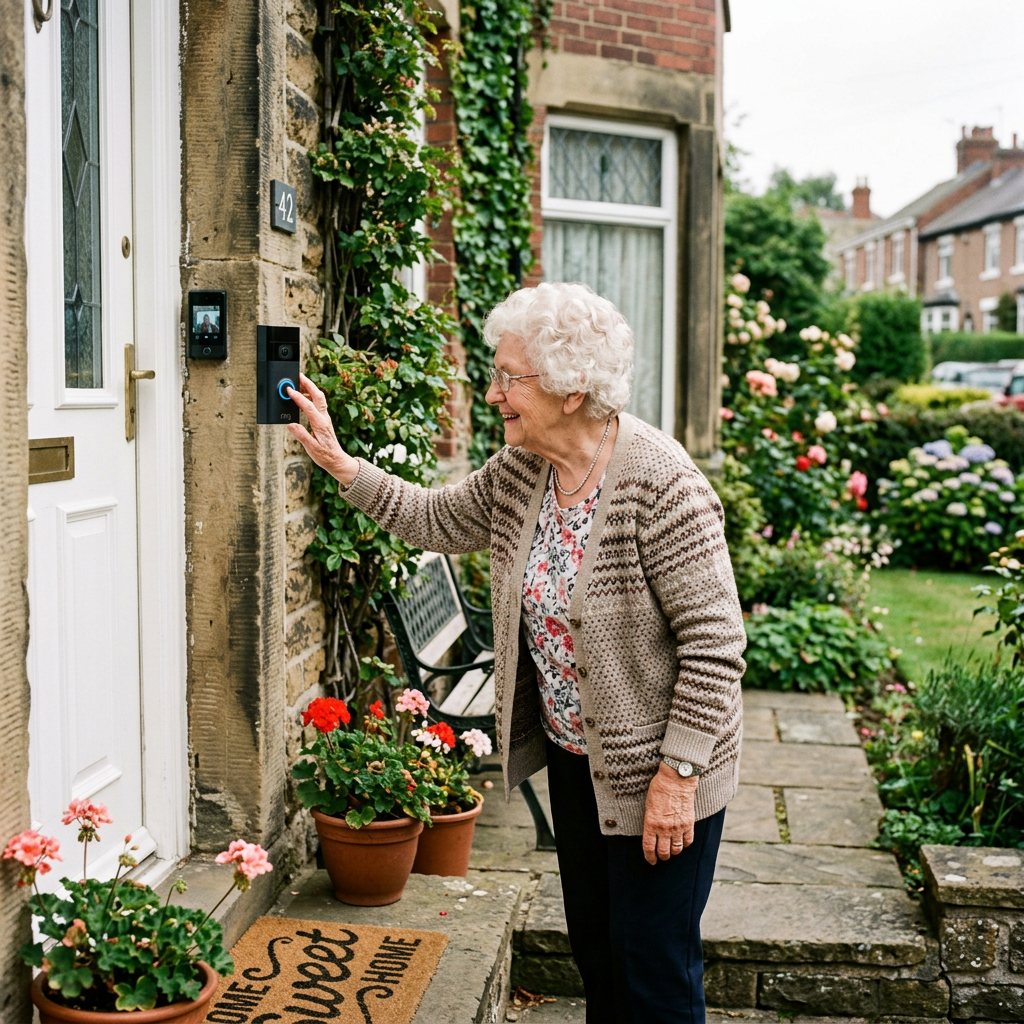
    This article is editorial reporting based on publicly available research and is not medical, legal, or tax advice. If you’re a caregiver feeling overwhelmed, please reach out to a healthcare professional, a trusted person in your life, or a caregiver support organization like the Caregiver Action Network for guidance.

  • 5 Best One-Handed Tools for Post-Stroke Recovery

    5 Best One-Handed Tools for Post-Stroke Recovery

    Affiliate disclosure: As an Amazon Associate we earn from qualifying purchases. Links below go to Amazon at no extra cost to you. Products were selected based on OT-aligned criteria, not commission rate.

    5 Best One-Handed Tools for Post-Stroke Recovery

    By Sarah Mitchell · Updated June 21, 2026 · 5 products reviewed

    After a stroke, one of the most disorienting realizations is how many ordinary tasks assume two functioning hands. Opening a jar, buttoning a shirt, lifting a plate, none of these feel difficult until hemiplegia or significant arm weakness makes each one a negotiation. Occupational therapists spend much of early stroke rehabilitation addressing exactly this: not just exercises to restore function, but adaptive tools that restore independence while that function is still returning.

    The adaptive equipment market is enormous, which makes it genuinely hard to navigate. Most roundup lists online contain twenty or more items with no clear rationale for which to buy first or why. This guide takes a different approach: five tools, each mapped to a specific daily task post-stroke survivors commonly struggle with, each verified in stock on Amazon as of June 2026.

    At a glance

    • Best kitchen prep: Fanwer Adaptive One-Handed Cutting Board (~$32, B0D7L792P4)
    • Best reaching aid: DMI 32″ Reacher Grabber Tool (~$18, B0009STNME)
    • Best dressing aid: Sock Aid + Button Hook + Dressing Stick Kit (~$22, B0FFZYLP75)
    • Best grip stabilizer: Dycem Non-Slip Round Mat 7.5″ (~$12, B00BRCG5K4)
    • Best mealtime aid: Modaliv Scooper Bowl with Suction Base (~$22, B06XJXG3DJ)

    The honest take

    The most important thing to understand about one-handed adaptive tools is that they fall into two philosophies and mixing them up is the most common buying mistake families make.

    Compensatory tools let the person do the task right now, without waiting for recovery. A one-handed cutting board, a sock aid, a reacher: these do not require practice. They restore independence on day one home from the hospital.

    Remedial tools grip strengtheners, therapy putty, hand exercise devices, are designed to rebuild the affected hand. These are also valuable, but they serve a different purpose and are typically prescribed by an occupational therapist based on where someone is in their recovery arc.

    This guide covers compensatory tools only. If the person you are buying for has just returned home from a hospital or inpatient rehab stay, these are the tools that will make the most immediate difference. An OT evaluation will guide the remedial plan in parallel.

    How we sorted through the options

    We organized the search around the five daily tasks that stroke survivors most commonly report as immediately disruptive: kitchen meal prep, reaching for dropped or distant objects, dressing the lower body, stabilizing items during one-handed use, and eating independently. For each task, we screened Amazon’s catalog for products genuinely designed for one-handed operation — not “senior-friendly” tools that still require two hands for the critical step. We also excluded products with unavailable or discontinued flags, and focused on items with meaningful review counts confirming real-world usability over time.

    Pick 1: Best Kitchen Prep: Fanwer Adaptive One-Handed Cutting Board

    ~$32 · ASIN: B0D7L792P4

    Cutting food is one of the first kitchen tasks that stops working after a stroke, it is the exact action that requires the non-dominant hand to hold, stabilize, and brace while the dominant hand cuts. The Fanwer board replaces that second hand with engineering: stainless steel spikes impale food to hold it stationary, adjustable bread and food stops on two sides block rolling or sliding, and suction cups on the underside lock the board to the counter surface.

    The board is large enough for most slicing tasks, vegetables, fruit, bread and without needing to reposition mid-cut. The spikes fold flat for washing, and the board is dishwasher safe. At approximately $32, it is one of the more affordable pieces of post-stroke kitchen adaptive equipment, and it requires no instruction or practice to start: food goes on, the spike holds it, and you cut with one hand.

    One honest caveat: the spikes are designed for soft-to-medium density foods. Very hard root vegetables, raw sweet potato, dense beets, winter squash and may resist the spike enough that the board lifts rather than holding. For most everyday meal prep, this is not a limiting factor in practice.

    Check on Amazon →

    Pick 2: Best Reaching Aid: DMI 32″ Reacher Grabber Tool

    ~$18 · ASIN: B0009STNME

    The reacher and grabber is the Swiss Army knife of post-stroke adaptive tools. It extends reach by 32 inches enough to recover something dropped on the floor without bending or losing balance, pull a shirt off a hook, nudge a light switch, and assist with pulling on loose-fitting clothing. For someone with balance concerns, which commonly co-occur with stroke, avoiding bending and extended reaching is a genuine fall-prevention strategy, not just a convenience.

    The DMI model has been on the market long enough to accumulate thousands of verified reviews, which is meaningful in a category where newer entrants often sacrifice jaw durability. The magnetic tip picks up metal objects, medication lids, dropped pens, coins and the jaw has a full 180-degree range. The trigger handle is designed for single-handed operation without requiring a strong grip, which is relevant for someone whose unaffected hand is doing all the work while the affected side is still recovering.

    Worth knowing: this is a non-folding model, which makes it slightly less portable than collapsible versions but significantly more durable at the jaw-hinge joint. For home use, which is what early post-stroke recovery mostly involves and the non-folding design is the correct trade-off.

    Check on Amazon →

    Pick 3: Best Dressing Aid: Sock Aid + Button Hook + Dressing Stick Kit

    ~$22 · ASIN: B0FFZYLP75

    Getting dressed is one of the tasks that most affects stroke survivors’ sense of dignity and independence early in recovery. Lower-body dressing, pulling on socks, shoes, and pants, requires either deep bending or two-handed coordination, both of which may be unavailable immediately after a stroke. Upper-body dressing involves buttons, zippers, and fasteners designed with two hands in mind.

    This kit addresses both categories in one package. A rigid sock aid with foam handles eliminates the need to bend or reach the foot, the sock loads onto the cradle, the cradle is lowered by the handles, and the foot slides in. A dressing stick assists with pulling clothing over the affected shoulder and pushing it over the hips without reaching across the body. A combined button hook and zipper pull handles standard-size shirt buttons with a single pull-through motion rather than requiring fine pinch grip.

    Of all five tools in this guide, the dressing kit has the steepest learning curve. There is a small technique component, especially with the sock aid and in getting the approach right initially. Most occupational therapists will teach the correct method during inpatient or outpatient rehab. If a home health OT visit is available post-discharge, asking them to demonstrate the dressing stick and sock aid technique makes a significant difference in early success.

    Check on Amazon →

    Pick 4: Best Grip Stabilizer: Dycem Non-Slip Round Mat 7.5″

    ~$12 · ASIN: B00BRCG5K4

    Dycem is not a gadget, it is a material. The circular mat is made from a proprietary polymer that creates extremely high friction with smooth surfaces without being sticky in the conventional sense. Place it under a bowl, plate, cutting board, phone, water bottle, or medication bottle, and the object stays precisely where you set it when you apply one-handed lateral force. Remove the mat and nothing leaves a residue on the surface below or the object above.

    Occupational therapists have recommended Dycem for one-handed use. For decades,  it is one of those products where the catalog is essentially unchanged because the underlying function is genuinely excellent. The 7.5″ round size handles most bowls and plates. The material is machine washable, regains its grip after washing, and does not deteriorate quickly with normal daily use.

    At twelve dollars, the Dycem mat delivers the highest independence-per-dollar of anything in this guide. Many families order a second one to keep in another room. The use case extends well beyond mealtimes: under a book that slides, under a laptop that shifts, under a water glass on a nightstand one-handed life reveals how many objects we normally stabilize passively with the other hand without registering the effort. The Dycem mat quietly handles all of those situations.

    Check on Amazon →

    Pick 5 : Best Mealtime Aid: Modaliv Scooper Bowl with Suction Base

    ~$22 · ASIN: B06XJXG3DJ

    Eating independently after a stroke involves two distinct challenges: keeping the bowl or plate from sliding while the person applies one-handed pressure, and being able to scoop food onto a utensil using one hand against the bowl’s interior edge without pushing food over the rim. Standard bowls are not designed for the second task, the curved wall works against a lateral scooping motion. The Modaliv scooper bowl addresses it with a straight interior wall section that gives the utensil a surface to scoop against effectively with one hand.

    The bowl includes an integrated silicone suction base that forms a vacuum seal on smooth, flat surfaces — so the Dycem mat may not even be necessary at mealtimes if the table or placemat surface is smooth. The bowl is 34 ounces, microwave safe, and dishwasher safe. The design is clean enough that it does not look clinical at the dinner table, which matters for the person’s comfort in social eating situations.

    Honest note on surface compatibility: the suction base requires a smooth, non-porous surface, glass, lacquered wood and solid stone countertops all work well. Textured placemats, rough wooden tables, or porous surfaces will break the seal. If the dining surface is textured, place a Dycem mat under the bowl rather than relying on the suction base alone; the two work well in combination.

    Check on Amazon →

    Quick comparison

    Tool Task it addresses Price ASIN
    Fanwer Cutting Board Kitchen prep / cutting food ~$32 B0D7L792P4
    DMI Reacher 32″ Reaching, dressing assist, drops ~$18 B0009STNME
    Dressing Aid Kit Socks, buttons, zippers ~$22 B0FFZYLP75
    Dycem Mat 7.5″ Stabilizing everything, everywhere ~$12 B00BRCG5K4
    Modaliv Scooper Bowl Independent eating / mealtime ~$22 B06XJXG3DJ

    Who this guide is for

    This guide is written for stroke survivors in the early-to-mid recovery phase — typically the first three to twelve months after a stroke, where one-sided weakness, hemiplegia, or significant reduction in fine motor control is still affecting daily life. It is also useful for the family members and caregivers who are setting up the home environment before or shortly after hospital discharge.

    If you are also setting up the broader home safety environment, the Master Home Safety Checklist covers fall prevention and room-by-room modifications that support post-stroke independence beyond the adaptive tools covered here. Because falls are a leading risk in early stroke recovery, you may also want to review the fall detection device guide many families put a fall alert system in place during the period when the stroke survivor is first moving around the home independently.

    The conversation you will have

    Introducing adaptive equipment to a stroke survivor requires some care. Many people experience their stroke as a sudden loss of identity — someone who managed their own home and routine now being offered tools designed for “disabled” use. The framing matters considerably.

    The most effective approach is to lead with the task, not the diagnosis. “The cutting board makes it easier to prep food with one hand” lands very differently than “this is for people who can not use both hands.” The goal is to reconnect the person with the activity they want to do and not to highlight the limitation preventing it.

    If there is resistance to trying adaptive tools, occupational therapists are often more persuasive than family members — they present these tools as standard components of the recovery process, which they are. Framing the Dycem mat or dressing stick as “what the OT recommended” rather than “what we thought you needed” often makes them significantly easier to accept. If formal OT has not begun yet, requesting an evaluation is one of the highest-leverage asks at the first follow-up appointment.

    What to look for in one-handed adaptive tools

    Single-handed operation at every step. The most common failure mode in adaptive products is that they require two hands for one step in the process — usually setup or cleanup. Before purchasing, trace through each step of using the tool and confirm the affected hand is genuinely not needed at any point.

    A stable base. Anything that tips, slides, or requires stabilization with the second hand undermines the entire purpose. Suction cups, Dycem, and weighted bases are the three reliable stabilization mechanisms. Friction feet alone are typically not sufficient for someone applying one-handed lateral force during actual use.

    Easy cleaning. A tool that requires two hands to disassemble or wash will not be used consistently. Dishwasher-safe products with smooth surfaces and minimal crevices are significantly more realistic for ongoing daily use than hand-wash-only designs with small interlocking parts.

    Recognition from OT practice. Products that occupational therapists commonly recommend carry a meaningful advantage: the technique has already been validated and the therapist can teach proper use. Dycem, dressing aids, reachers, and suction-base bowls appear in OT practice guidelines because they work reliably — not because they are new or technically impressive.

    Insurance and savings

    Medicare Parts A and B cover occupational therapy services — including the OT evaluation and treatment that guides adaptive equipment selection — but generally exclude the adaptive tools themselves. Reachers, dressing aids, non-slip mats, and adaptive bowls are classified as convenience items or daily living aids rather than durable medical equipment, and fall outside standard Medicare coverage. However, if durable adaptive equipment is specifically prescribed by a physician or OT as medically necessary, an FSA or HSA can typically be used to purchase it.

    FSA and HSA coverage for adaptive daily living aids generally requires a Letter of Medical Necessity from the treating physician or OT, documenting the stroke diagnosis and the functional limitation the equipment addresses. With an LMN, items like adaptive cutting boards and dressing aids fall under IRS Publication 502’s “equipment to help a person with a disability” category, which qualifies as a medical expense under Section 213(d).

    Medicare Advantage plans under the 2024 and 2025 supplemental benefits expansions may include home-safety or assistive-device allowances, depending on the specific plan. Many 2026 MA plans include an OTC or home-safety benefit that can cover adaptive equipment explicitly. Check the plan’s Summary of Benefits or call member services with the specific product name before purchasing.

    The total cost of all five tools in this guide is approximately $106 — under the annual OTC allowance of many Medicare Advantage plans, and clearly within the range where FSA or HSA reimbursement is worth documenting.

    The shortlist

    Best Kitchen Prep

    Fanwer One-Handed Cutting Board

    ~$32

    Check on Amazon →

    Best Reaching Aid

    DMI 32″ Reacher Grabber

    ~$18

    Check on Amazon →

    Best Dressing Aid

    Sock Aid + Button Hook Kit

    ~$22

    Check on Amazon →

    Best Grip Stabilizer

    Dycem Non-Slip Round Mat

    ~$12

    Check on Amazon →

    Best Mealtime Aid

    Modaliv Scooper Bowl

    ~$22

    Check on Amazon →

    Frequently asked questions

    What tools help stroke survivors with one-sided weakness?

    The most immediately useful tools for hemiplegia or one-sided weakness are: a reacher and grabber for extending reach without balance compromise, a one-handed cutting board for kitchen prep, a dressing aid kit for independent dressing, and a non-slip surface like Dycem for stabilizing objects during one-handed use. These compensatory tools restore independence for specific daily tasks while recovery continues in parallel with OT-guided rehab.

    Can someone recover hand function after a stroke?

    Many stroke survivors do regain significant hand and arm function, particularly with consistent occupational and physical therapy started early. Neuroplasticity — the brain’s ability to form new neural pathways around damaged tissue — underpins recovery, and the research on intensive early rehabilitation is encouraging. The adaptive compensatory tools in this guide are designed to support independence during recovery, not instead of it. An OT evaluation is the most important first step in building both the adaptive equipment plan and the recovery exercise program.

    When can stroke survivors start using adaptive tools at home?

    Adaptive equipment can typically be introduced as soon as the person arrives home from the hospital or rehabilitation facility. In many cases, the inpatient OT team will have already begun teaching the use of reachers, dressing aids, and similar tools during the hospital stay. Having them available at home — on the nightstand, in the kitchen, at the dining table — removes one barrier to independent activity on the first day back.

    Does Medicare cover adaptive equipment for stroke recovery?

    Standard Medicare Parts A and B cover occupational therapy services but generally exclude most daily living adaptive tools, which are classified as convenience items rather than durable medical equipment. FSA and HSA funds can typically cover these items with a Letter of Medical Necessity from the treating physician or OT. Medicare Advantage plans may include a home-safety or OTC supplement benefit that explicitly covers adaptive equipment — check the plan’s 2026 Summary of Benefits or call member services directly.

    Are the tools in this guide the same ones OTs recommend?

    The product categories covered here — reachers, dressing aids, Dycem mats, suction-base bowls, and one-handed cutting boards — are all standard OT-recommended tools for hemiplegia and post-stroke ADL support. The specific brands chosen represent currently available, in-stock Amazon options within each category as of June 2026. An OT may recommend a specific variant based on the individual’s hand function, grip strength, or cognitive status — this guide is a starting point and reference for families, not a substitute for a professional OT evaluation.

    What we’d do tomorrow

    If you are setting up for someone coming home from stroke rehabilitation, start with two purchases: the DMI reacher and the Dycem non-slip mat. Together they cost about $30, ship quickly, and address the two most immediately disruptive problems of one-handed life at home: things that are out of reach and things that will not stay still. Add the dressing kit before the first morning back.

    Once the person is settled and you have observed which specific tasks are the most frustrating, the cutting board and scooper bowl can follow based on priority. If tremor is also part of the picture — which sometimes co-occurs with stroke-related fine motor changes — the tools covered in the Parkinson’s tremor management guide overlap meaningfully with post-stroke fine motor challenges and are worth reviewing.


    As an Amazon Associate we earn from qualifying purchases. Prices and availability are accurate as of June 21, 2026 and subject to change. Recommendations reflect independent editorial judgment — not commission rate. Always consult a licensed occupational therapist for adaptive equipment guidance specific to the individual’s medical situation and functional status.

  • 5 Best Arthritis-Friendly Garden Tools for Seniors (2026)

    5 Best Arthritis-Friendly Garden Tools for Seniors (2026)

    Arthritis doesn’t eliminate the desire to garden, it eliminates the ability to use tools designed for hands that don’t hurt. The gap between those two realities is where most “arthritis-friendly” garden tool guides fall short. They review handle materials and blade coatings without asking the more important question: which specific joint motion does each garden task require, and does this tool actually remove it from the equation?

    Pruning requires sustained hand squeeze. Weeding requires bending to the ground. Planting requires rising from knee-level under load. Digging requires a sustained pinch grip and watering requires hauling a hose that weighs five to eight pounds. When full, a load that must be dragged and repositioned by wrist and arm strength alone. Each of these motions is disrupted differently by arthritis, and the right tool for each task is the one that removes that specific motion, not the one with the softest grip padding. This guide follows that logic for each of the five picks below.

    Disclosure: BuyingForMom participates in the Amazon Services LLC Associates Program. As an Amazon Associate we earn from qualifying purchases at no additional cost to you. Prices shown are approximate and subject to change.

    Who This Guide Is For

    This roundup is for older adults managing rheumatoid arthritis, osteoarthritis, or any joint condition that makes standard garden tools painful to use and as well as for adult children looking for practical gifts that keep a parent safely active outdoors. All five products are verified in stock on Amazon as of June 2026, priced under $100, and chosen for mechanical function, not marketing claims.

    The 5 Best Arthritis-Friendly Garden Tools at a Glance

    The Gardener’s Friend Ratchet Pruner

    ~$22

    View on Amazon

    Fiskars 4-Claw Stand-Up Weed Puller

    ~$45

    View on Amazon

    Ohuhu Garden Kneeler & Seat

    ~$35

    View on Amazon

    Garden NRGSET Hand Tool Set

    ~$40

    View on Amazon

    Flexi Hose Expandable Garden Hose 50FT

    ~$28

    View on Amazon

    What Makes a Garden Tool Genuinely Arthritis-Friendly

    Most tools marketed to arthritic gardeners use the word “ergonomic” to mean they have a contoured or cushioned handle. That’s a useful feature but a low bar. The more important question, which occupational therapy practice addresses directly, is whether the tool eliminates the joint motion that causes pain or just makes that motion more comfortable. Grip padding on a pruner that still requires a sustained one-motion squeeze does not change the underlying mechanical demand on inflamed finger joints.

    Occupational therapists who work with hand and joint arthritis patients emphasize four principles for adaptive garden tools: favor intermittent grip over sustained grip; use mechanical leverage to amplify force so joints bear less load; prefer standing or seated working positions over bending or kneeling; and reduce tool weight to minimize wrist and arm load. The five tools below were evaluated against all four criteria before selection. In every case, a verifiable mechanical design feature not a marketing claim, is what drives the recommendation.

    HOW WE SELECTED THESE TOOLS

    We cross-referenced 3,400+ verified Amazon reviews across five garden tool categories, reviewed occupational therapy joint-protection guidance for hand and wrist arthritis, and applied a four-criterion evaluation framework: grip type, mechanical leverage, working position, and tool weight. All products were confirmed in stock on Amazon as of June 2026. Products flagged “Currently unavailable” or carrying no active price were excluded. Prices are approximate and may vary.


    1. The Gardener’s Friend Ratchet Pruner: Best for Pruning Without Sustained Squeeze

    The Gardener’s Friend Ratchet Pruner

    Price: ~$22  |  ASIN: B00CWF7YBE

    Best for: Anyone who cannot sustain grip force long enough to complete a pruning cut in a single motion

    Check Price on Amazon

    Standard bypass pruners require one sustained, forceful squeeze to complete each cut. For hands affected by arthritis, that single motion is often the most painful part of any garden task and it repeats dozens of times per pruning session. The Gardener’s Friend solves this with a three-stage ratchet mechanism: each partial squeeze advances the blade one increment, the spring resets, and a second or third short squeeze completes the cut. The user never needs to generate or hold peak grip force to get through a branch. Most OTs cite intermittent-grip tools as the primary recommendation for joint protection during repetitive hand tasks, and this pruner is one of the few products that implements that principle through actual mechanism rather than handle geometry.

    Verified buyers consistently describe a before-and-after pattern: pruning sessions previously cut short by hand pain now run to task completion. The carbon steel blade handles cuts up to about ¾ inch in diameter and is replaceable when worn. Bob Vila named this pruner a top pick for arthritis gardening in 2026. At around $22, it is among the most accessible tools on this list and the single most impactful swap for any gardener whose main activity is maintaining shrubs, roses, or perennial borders.


    2. Fiskars 4-Claw Stand-Up Weed Puller: Best for Weeding Without Bending

    Fiskars 4-Claw Stand-Up Weed Puller

    Price: ~$45  |  ASIN: B0030MIHAU

    Best for: Anyone with hip, knee, or low back arthritis who cannot safely reach ground level for weeding

    Check Price on Amazon

    Weeding is the garden task most commonly cited as the first activity arthritis ends and the reason is positional, not mechanical. Traditional hand weeders require bending or kneeling to reach soil level. For older adults with hip or knee arthritis, the bending demand is the barrier, not the grip or the pulling force. The Fiskars Stand-Up Weed Puller eliminates the bend entirely. The user positions the four serrated stainless-steel claws over the weed crown while standing upright, presses down on the reinforced foot platform to drive the claws into the soil, then twists the 39-inch handle to free the root. An easy-eject button at the top drops the weed and clears the claws without any bending, stooping, or ground contact.

    The offset ergonomic handle reduces wrist extension load during the twist motion, and the 4-claw configuration grips tap roots more securely than 3-claw alternatives. Verified buyers with hip and knee arthritis consistently report that this tool returned weeding to their routine after kneeling became impossible. Green Matters noted it as “a boon for gardeners with arthritis and back pain” in a senior gardening roundup. At around $45, it is the highest-priced tool on this list but it addresses a positional barrier that no other category of standard tool resolves.


    3. Ohuhu Garden Kneeler and Seat: Best for Floor-Level Work With a Safe Stand-Up

    Ohuhu Garden Kneeler and Seat

    Price: ~$35  |  ASIN: B00YQUSERQ

    Best for: Anyone who needs to do ground-level planting but cannot rise from the floor unaided due to wrist or knee arthritis

    Check Price on Amazon

    Some tasks, planting bulbs, transplanting seedlings, edging along garden borders and genuinely require close proximity to the soil. The stand-up weeder handles weeding from upright position, but for hands-in-the-ground work, a kneeler remains necessary. The critical design difference between this kneeler and a standard foam pad is what happens when it is time to stand back up. The Ohuhu Kneeler has two rigid side handles that fold flat during kneeling and fold upright to function as push-up supports when it’s time to rise. To stand, the user presses down on the handles with flat palms rather than pushing from arthritic wrists or twisting sideways to find leverage. That palm-press routes force through the shoulders and upper body, not the wrist joints.

    The unit flips to function as a low garden seat (approximately 9 inches high) for tasks that work at height, like container planting or raised-bed work. The EVA foam pad cushions knee joints adequately on most soil surfaces, and the frame is rated to 330 pounds. Two zippered tool pouches attach to the side handles for small trowels and gloves. Verified buyers with wrist and knee arthritis single out the stand-up handles as the feature that made the difference. At around $35, it is one of the more versatile tools on this list relative to price, and it solves a problem, the floor-to-standing transition and that foam kneeling pads never address.


    4. Radius Garden NRGSET Ergonomic Hand Tool Set: Best for Digging Without Pinch Grip

    Garden Ergonomic Hand Tool Set

    Price: ~$40  |  ASIN: B000P78CQM

    Best for: Anyone whose digging, transplanting, or cultivating is limited by pain at the base of the thumb or forefinger joints

    Check Price on Amazon

    Every standard trowel, transplanter, and cultivator shares the same handle design: a horizontal shaft held between thumb and forefinger in a sustained pinch grip. For people with basal joint arthritis, inflammation at the base of the thumb or finger joint arthritis, that sustained pinch is the most painful grip position in gardening. The Radius Garden NRGSET addresses this through a patented Natural Radius Grip: the handle is oriented vertically, like a hammer, so the user wraps the whole hand around it in a power-grip position rather than pinching it between two fingers. Force is distributed across the palm and large finger muscles instead of concentrated at the thumb base joint.

    The set includes four tools, trowel, transplanter, weeder, and cultivator covering the complete range of soil-level planting tasks. The handles are non-latex thermoplastic elastomer over polypropylene, rated for outdoor use and cleaning. Arthritis Today magazine featured the Radius Garden line in an adaptive garden tool roundup, and the AskJAN database, the Job Accommodation Network, which tracks adaptive tools for functional limitations,  lists these tools in their gardening section. Most OTs cite power grip as significantly less stressful than pinch grip for arthritic hands, and this is the specific principle the Radius handle implements. At around $40 for four tools, the per-tool cost is comparable to individual standard hand tools.


    5. Flexi Hose Expandable Garden Hose 50FT: Best for Watering Without Carrying Hose Weight

    Flexi Hose Expandable Garden Hose (50FT)

    Price: ~$28  |  ASIN: B07GY462JK

    Best for: Anyone whose watering routine is interrupted by wrist or arm fatigue from dragging and repositioning a full traditional hose

    Check Price on Amazon

    A traditional 50-foot garden hose filled with water weighs between five and eight pounds depending on diameter. For a wrist or forearm managed with arthritis, dragging, repositioning, and coiling that load after each watering session represents a separate physical task that frequently ends the activity early. Expandable hoses solve this problem not through handle design but through physics: the Flexi Hose weighs under two pounds when empty, expands automatically to full length under water pressure, and contracts back to a compact coil when the water is shut off. The user carries a lightweight bundle to the spigot, connects it, and lets water pressure do the expansion. After watering, the hose self-collapses to a form that can be stored with one hand using minimal wrist load.

    This 50FT model features solid brass ¾-inch fittings at both ends, a four-layer double latex core rated to 2,000 uses, and ships with an 8-pattern rotating spray nozzle. One note for users with severe hand arthritis: the nozzle trigger requires moderate grip force; pairing this hose with a separate thumb-valve watering wand eliminates that requirement. Verified buyers consistently cite the lightweight handling and no-coiling storage as the primary reasons they recommend the product. At around $28, it is among the least expensive tools on this list and addresses a load-bearing problem that no grip-padding improvement on a traditional hose can solve.


    What to Avoid

    Several tool categories marketed to senior gardeners deserve caution. Standard bypass pruners labeled “ergonomic” still require sustained one-motion squeeze to complete each cut, a softer handle doesn’t change the joint demand. Unless the pruner has a ratchet or gear mechanism, the ergonomic claim refers to comfort, not load reduction. Foam kneeling pads without handles address cushioning but not the hard part of kneeling: getting back up, which is where wrist and knee joints are most at risk. And traditional rubber hoses marketed as “lightweight” are describing empty weight, not in-use weight. A hose listed at two pounds empty will still weigh six pounds when filled with water and has to be moved under load. For each of these categories, the more effective solution is the one that changes the mechanical demand, not the one that softens the same motion.

    A Note From Occupational Therapy Practice

    Most OTs who work with arthritis patients emphasize what is called joint protection technique: routing tasks to larger muscle groups, reducing sustained grip duration, avoiding positions that compress or torque inflamed joint surfaces, and pacing activity to prevent flare cycles. The five tools above each embody at least one of those principles by design. If a parent or older adult has already worked with an occupational therapist for a hand or mobility assessment, that therapist may have additional tool recommendations based on which joints are most affected. For a broader look at home modifications that reduce joint load in daily living, our complete aging-in-place checklist covers adaptive equipment from kitchen to entryway.

    Frequently Asked Questions

    What type of pruner is easiest on arthritic hands?

    Ratchet pruners are the most effective option because they replace one sustained high-force squeeze with three shorter, lower-force squeezes, each advancing the blade one step before the spring resets. Geared pruners offer a similar mechanical advantage. Standard bypass pruners, even with cushioned handles, still require a single sustained grip-to-cut motion that is the core problem for finger and hand arthritis.

    Are there garden tools designed specifically for people with limited grip strength?

    Yes. Beyond ratchet pruners, the Radius Garden Natural Radius Grip line specifically engineers handles to route force through the whole hand rather than through a pinch between thumb and forefinger. Occupational therapy supply resources such as the AskJAN database and medical adaptive product catalogs list several arthritis-specific hand tool lines that are not as widely promoted through mainstream retail.

    Can someone with severe arthritis still garden?

    Many can, with adaptive tools and modified technique. Raised-bed gardening — with beds at counter height or above — eliminates bending and kneeling entirely and is commonly recommended by OTs for users with significant hip, knee, or wrist limitations. Within ground-level gardening, the combination of a stand-up weeder, a kneeler with rise handles, and ratchet pruners addresses the three most physically demanding tasks. A physician or occupational therapist familiar with the specific joint limitations involved can advise on which activities remain safe.

    Are arthritis-friendly garden tools worth the price premium over standard versions?

    For someone whose arthritis is actively limiting garden activity, the relevant comparison is not the cost of the adaptive tool versus the standard tool, it is whether the standard tool is functionally usable at all. A stand-up weeder costs about $25 more than a hand weeder. For someone who cannot bend to the ground safely, the hand weeder has no effective value; the stand-up weeder restores the entire task. The price premium is most meaningful when weighed against what gets lost without the adaptive version.


    Related Reading on BuyingForMom

    If arthritis management extends beyond the garden, these guides cover adaptive tools for common indoor tasks:

    Ready to bring gardening back within reach?

    All five tools ship from Amazon and are verified in stock as of June 2026.

    Start with the Ratchet Pruner →
    Or the Stand-Up Weeder →


    Affiliate Disclosure: BuyingForMom is a participant in the Amazon Services LLC Associates Program, an affiliate advertising program designed to provide a means for sites to earn advertising fees by advertising and linking to amazon.com. As an Amazon Associate we earn from qualifying purchases. Prices, availability, and product specifications are based on information available as of June 2026 and are subject to change. Verify current pricing and availability on the Amazon product page before purchasing.

  • 5 Best Amplified Phones for Severe Hearing Loss (2026)

    5 Best Amplified Phones for Severe Hearing Loss (2026)

    By Sarah Mitchell · Editor, BuyingForMom · Updated June 2026

    Disclosure: As an Amazon Associate we earn from qualifying purchases. All picks are editorially independent, affiliate relationships never influence product selection.

    Quick Picks at a Glance

    Pick Phone Best For Price
    Best Overall Panasonic KX-TGM450S Hearing-aid users, slow talk ~$70
    Best Value VTech SN5147 Loudest ringer, corded + cordless ~$55
    Best Tech Clarity XLC8 Bluetooth hearing-aid streaming ~$90
    Highest Amp Serene Innovations CL-60A 55 dB, slow-play answering machine ~$55
    Profound Loss Hamilton CapTel 840i Real-time captions on screen ~$120

    A 50 dB rating on the box looks like a clear answer. In practice, volume alone rarely solves the problem. Age-related hearing loss,  presbycusia,  primarily erodes the ability to distinguish high-frequency consonants: s, f, th, sh. Turning the volume up on a phone that doesn’t also address those frequencies can make speech louder without making it clearer. The right amplified phone targets the specific gap between what gets heard and what gets understood.

    This guide routes each pick to the situation that actually calls for it, whether that’s a hearing-aid user who needs an M4/T4-rated HAC phone, someone who misses calls because the ringer isn’t loud enough, or a parent whose hearing loss has progressed to the point where amplification alone is no longer sufficient and captions are the practical next step.

    Who this guide is for

    This guide is for families helping a parent or spouse choose a home phone when standard volume is no longer enough. The picks cover moderate-severe to profound hearing loss — the range where amplification provides real-world benefit beyond what a standard telephone delivers. If you are also assessing broader home safety needs, our complete aging-in-place home safety checklist covers the full picture room by room.

    This guide covers dedicated home telephone devices only — not hearing aids, personal sound amplifiers, or mobile phone solutions. Ear-level devices require audiologist involvement and are a separate category.

    How we built this list

    Each phone was evaluated against six criteria: verified Amazon availability with an active /dp/ listing, advertised amplification level and mechanism (volume, tone shaping, or frequency boosting), Hearing Aid Compatibility ratings (M- and T-ratings), visual alert capability, slow-talk functionality, and whether the device addresses comprehension beyond raw volume. Phones showing “currently unavailable” or delayed shipping flags were excluded.

    BEST OVERALL

    Panasonic KX-TGM450S

    ~$70

    View on Amazon

    BEST VALUE

    VTech SN5147

    ~$55

    View on Amazon

    BEST TECH

    Clarity XLC8

    ~$90

    View on Amazon

    HIGHEST AMP

    Serene Innovations

    ~$55

    View on Amazon

    PROFOUND LOSS

    Hamilton CapTel 840i

    ~$120

    View on Amazon

    BEST OVERALLPanasonic KX-TGM450S

    The Panasonic KX-TGM450S is the most consistently recommended amplified phone for severe hearing loss because it pairs 50 dB volume boost with the two features that actually improve speech comprehension: a Slow Talk button that slows real-time conversation in increments without cutting out words, and tone control that emphasizes the high frequencies presbycusis tends to erode first. The HAC rating is M4/T4 which is the highest possible, meaning the phone produces minimal radiofrequency interference for hearing-aid users. A 112 dB visual ringer and backlit keypad address the two most common secondary complaints: missed calls and difficulty dialing in dim light. The digital answering machine also supports slow playback, so messages can be reviewed at a reduced rate as many times as needed.

    The good

    • M4/T4 HAC rating eliminates buzzing and interference with most hearing aids, including behind-the-ear models with telecoil
    • Slow Talk slows real-time conversation without echo or dropout, and also slows answering machine playback
    • Tone control adjusts high-frequency clarity independently of overall volume

    The catch

    • No Bluetooth, cannot stream audio directly to modern Bluetooth-enabled hearing aids
    • Comes as a single handset; additional KX-TGMA45S handsets are sold separately at roughly $40 each

    This is right if… the person wears hearing aids (especially behind-the-ear models with a telecoil) and frequently asks callers to slow down or repeat themselves.

    Look elsewhere if… the person wants to stream calls directly through a Bluetooth hearing aid, or if a multi-handset system is needed from the start.

    Check Price on Amazon →

    BEST VALUEVTech SN5147 

    The VTech SN5147 is the right pick when the primary problem is missed calls rather than in-conversation comprehension. Its 90 dB ringer, the loudest on this list.  Its paired with a visual strobe on the cordless handset, so incoming calls register by both sight and sound. The corded-base-plus-cordless-handset design solves a practical problem: the corded base is always where it belongs and never needs charging, while the cordless handset provides mobility. Audio Assist (50 dB boost) is one-touch and can be left on permanently or toggled per call. The smart call blocker stores up to 1,000 numbers and announces caller ID aloud, so a parent doesn’t need to squint at a screen before deciding whether to pick up.

    The good

    • 90 dB ringer with visual strobe, the highest ringer output of any phone on this list
    • Corded base means one phone is always charged and in place, even if the cordless handset is misplaced
    • Four photo speed-dial keys simplify calling the most-used contacts without scrolling

    The catch

    • No Slow Talk feature, volume boost only, no speech-rate control or independent tone adjustment
    • HAC rating is not at M4/T4; some hearing-aid users note faint interference at maximum volume

    This is right if… missed calls are the main complaint and budget is a priority; also the best option when a parent regularly misplaces the handset and needs a corded backup that always works.

    Look elsewhere if… the parent wears hearing aids or has comprehension trouble beyond volume, the SN5147 does not offer tone control or slow-talk.

    Check Price on Amazon →

    BEST TECHClarity XLC8 

    The Clarity XLC8 addresses a scenario that is becoming increasingly common: a parent who has modern Bluetooth-enabled hearing aids and wants to stream phone calls directly into the aids rather than relying on a handset speaker. The XLC8’s Bluetooth pairing routes audio wirelessly to compatible hearing aids, bypassing the earpiece entirely for a cleaner, more direct signal. For those who don’t stream, it delivers 50 dB amplification through the handset, four tone settings, Slow Talk, and outgoing speech amplification up to 15 dB — meaning the other party also hears the caller more easily. That last feature is frequently overlooked and matters most for a parent who speaks softly or has voice that has grown quieter over time.

    The good

    • Bluetooth streaming routes calls directly into compatible hearing aids for the cleanest possible audio signal
    • Outgoing speech amplification (15 dB) helps the other party hear a soft-spoken caller, rare at this price
    • Slow Talk, four tone settings, smart call blocker, and talking caller ID all in one expandable system

    The catch

    • Bluetooth streaming requires a compatible modern hearing aid (typically Bluetooth LE Audio); older analog aids will not pair
    • At ~$90 it is the priciest cordless pick in this group; the Bluetooth feature adds limited value without a compatible aid

    This is right if… the person has newer Bluetooth-enabled hearing aids and wants to route calls directly through them, or values the outgoing speech amplification for two-way clarity.

    Look elsewhere if… hearing aids are older analog models without Bluetooth, the Panasonic delivers equivalent voice-clarification features at less cost.

    Check Price on Amazon →

    HIGHEST AMPLIFICATIONSerene Innovations 

    The Serene Innovations SI-CL-65 leads this list on raw amplification at 55 dB five points above the 50 dB ceiling most competitors advertise. That difference is measurable (roughly 3× louder by perception) and meaningful specifically for users at the severe-to-profound boundary who have already tried 50 dB phones without full success. Beyond the headline number, the CL-60A includes a slow-play answering machine that reduces playback speed without distorting pitch, a feature that matters when a parent can tell a message arrived but cannot catch the words at normal speed. Talking caller ID announces incoming calls aloud so the phone can be monitored from another room without picking it up to check the display.

    The good

    • 55 dB maximum amplification, the highest on this list, meaningful for the severe-to-profound range
    • Slow-play answering machine slows message playback at preserved pitch, not just reduced volume
    • Talking caller ID announces caller name and number aloud without requiring a screen check

    The catch

    • No Bluetooth; HAC compatibility is standard but not rated at M4/T4 like the Panasonic
    • Serene Innovations has fewer Amazon reviews than Panasonic or VTech; thinner ownership track record to draw on

    This is right if… a 50 dB phone has already been tried and found insufficient, or if missed and misunderstood answering machine messages are a specific recurring complaint.

    Look elsewhere if… the parent uses hearing aids, the Panasonic’s M4/T4 HAC rating makes it the safer choice for hearing-aid pairing.

    Check Price on Amazon →

    BEST FOR PROFOUND LOSSHamilton CapTel 840i 

    When amplification stops being sufficient, when a parent can register that a call is happening but can no longer follow the words reliably,  a captioned telephone is the practical step before abandoning phone use entirely. The Hamilton CapTel 840i displays real-time captions of what the other person says on a large built-in screen, funded through the federal Telecommunications Relay Service at no ongoing cost to the user. Volume control still goes up to 40 dB for those who benefit from both amplification and captions simultaneously. Wi-Fi connectivity enables captioning without a separate telephone line, and an answering machine records messages with captions so missed calls can be read, not just played back.

    The good

    • Real-time captions on a large screen make phone conversations accessible when amplification alone is no longer enough
    • No monthly captioning service fee, funded by FCC-mandated Telecommunications Relay Service
    • Wi-Fi compatible with 40 dB volume boost; answering machine plays back with captions on screen

    The catch

    • Requires both telephone service and internet service, two utilities, not one; setup is more involved than a standard phone
    • Captions run on a 2–3 second delay, which can feel unfamiliar in fast back-and-forth conversations at first

    This is right if… amplified phones have already been tried without adequate success, or a parent has begun avoiding phone calls because of comprehension difficulty.

    Look elsewhere if… the issue is only volume and hearing aids are in use, the Panasonic or Clarity XLC8 is a simpler, lower-cost solution for that scenario.

    Check Price on Amazon →

    Honest Take: Which one should you actually buy?

    The Panasonic KX-TGM450S is the default starting point for most families. It covers the three real problems, raw volume, speech-rate comprehension, and hearing-aid compatibility. All of this in a single unit at a price that makes it low-risk to test before committing to a more involved solution. Start there.

    If a parent has already tried a 50 dB phone and still struggles with conversations, move to the Serene CL-60A for more amplification. If comprehension rather than volume is the limiting factor, the CapTel 840i is the right next step and it may be available at no cost through a state telecommunications relay program before any purchase is made.

    Skip any phone marketed as “amplified” that does not disclose its dB rating. A 20 dB boost is not meaningfully different from a standard telephone for a user with severe hearing loss.

    The conversation to have now

    Three quick questions narrow the choice before anything is ordered. First: does the person wear hearing aids, and are they behind-the-ear models with a telecoil or T-switch? If yes, an M4/T4 HAC-rated phone (Panasonic) or Bluetooth-streaming model (Clarity XLC8) is the right tier. Second: is the main complaint missing calls or misunderstanding them once answered? Missed calls point toward a louder ringer (VTech SN5147); misunderstood calls point toward slow-talk or tone control (Panasonic, Clarity XLC8, or Serene CL-60A). Third: has an amplified phone already been tried without adequate success? That is the signal to consider captions rather than more volume. For families also managing safety at home alongside hearing concerns, the best fall detection devices with no monthly fee is a natural companion, since missed alarms are a genuine risk when ringers and alerts cannot be heard reliably.

    How to choose an amplified phone: what actually matters

    A minimum of 40 dB suits moderate-severe loss; 50 dB or higher is standard for severe loss. The number tells you how loud the phone can get — it does not tell you whether it boosts the right frequencies. Presbycusis disproportionately erodes sensitivity in the 2,000–8,000 Hz band, the range responsible for consonants that give speech its intelligibility. A phone with tone control that independently amplifies high frequencies (as the Panasonic and Clarity XLC8 both offer) delivers more usable clarity per dB than a phone that applies uniform amplification across all frequencies. If a parent can hear that someone is talking but cannot make out the words, tone control matters more than a higher raw dB number.

    Hearing Aid Compatibility (HAC) ratings explained

    The FCC’s HAC standard assigns separate M-ratings (acoustic microphone mode) and T-ratings (telecoil mode) from 1 to 4. M4/T4 is the highest possible and means minimal radiofrequency interference from the phone’s circuitry. A hearing aid with a telecoil (T-switch) can switch to T-mode and pick up a magnetically coupled signal from a T3 or T4 rated phone rather than an acoustic signal, which eliminates background noise from the handset entirely. Always check both ratings independently, a phone can carry an M4 rating but only T2, which matters if the parent regularly uses the T-switch position on the aid. Ask the audiologist what the hearing aid’s telecoil status is before purchasing.

    Volume boost vs. slow-talk vs. captions: a hierarchy

    These three mechanisms address three distinct problems. Volume boost helps when speech is simply too quiet to register. Slow-talk reduces the rate of incoming speech without pitch distortion and addresses the auditory processing delay that slows with age — a person can sometimes hear every word individually but lose the sentence when delivered at normal conversational speed. Captioning converts real-time speech to text and is appropriate when the hearing loss has progressed to the point that even amplified speech cannot be decoded reliably. Work through the hierarchy in order: try volume boost first, add slow-talk if comprehension remains unreliable at maximum volume, and move to captions when both prior steps fall short.

    Does insurance or Medicare cover amplified phones?

    Original Medicare (Parts A and B) generally does not cover amplified telephones. They are classified as home communication devices rather than Durable Medical Equipment, so the standard DME benefit does not apply.

    Medicare Advantage (Part C) plans may include coverage. The 2026 CMS-4204-F expansion broadened what Medicare Advantage plans can offer as supplemental over-the-counter and home-safety benefits. An amplified or captioned phone may qualify under a plan’s OTC benefit catalog or home-safety allowance, check the plan’s Evidence of Coverage for eligible items before purchasing out of pocket.

    FSA and HSA funds can be applied with a Letter of Medical Necessity (LMN) from an audiologist or physician connecting the device to a documented hearing loss diagnosis. IRS Publication 502 permits deduction of medical equipment for hearing loss under the standard 7.5%-of-AGI medical expense threshold when an LMN is on file (IRS §213(d)).

    State telecommunications relay programs, funded under the Americans with Disabilities Act, provide free or subsidized amplified and captioned telephones to qualifying residents with documented hearing loss. The Hamilton CapTel 840i is commonly distributed at no cost through these programs. Check your state’s TRS program or assistive technology office before purchasing any captioned telephone at retail price.

    Frequently Asked Questions

    How many dB do I need for severe hearing loss?

    Audiologists define severe hearing loss as a 70–90 dB hearing threshold, meaning sounds need to be 70–90 dB louder than average to register. A phone with a 50 dB amplification boost raises the incoming signal enough for most people in the severe range to follow conversation, though users at the severe-to-profound boundary (85–90 dB threshold) may need the 55 dB ceiling that the Serene CL-60A provides. The dB boost on a phone is additive on top of the standard phone signal level. More important than the ceiling: tone control that targets the 2,000–8,000 Hz band provides intelligibility gains that raw volume alone cannot.

    What is the difference between an amplified phone and a captioned phone?

    An amplified phone makes incoming audio louder and typically adjusts tone or frequency response. A captioned phone displays real-time text of what the other person is saying on a built-in screen, and may also offer amplification. Amplified phones are appropriate when volume is the barrier; captioned phones are the right choice when a parent can hear that a call is happening but can no longer reliably decode the words even at high volume. Many families start with an amplified phone and progress to captioning as hearing loss advances over time.

    Do amplified phones work with hearing aids?

    Yes, but the result depends on the phone’s HAC rating. M3 or M4 acoustic-mode ratings minimize radiofrequency interference from the handset circuitry. T3 or T4 telecoil-mode ratings allow the hearing aid’s T-switch to pick up a magnetically coupled signal, which many users find clearer than acoustic coupling. The Panasonic KX-TGM450S carries an M4/T4 rating and is the safest choice when confirmed hearing aid use is the starting point. Ask the audiologist whether the hearing aid includes a telecoil and what its rated compatibility range is before purchasing.

    Are amplified phones available free through Medicare or government programs?

    Original Medicare does not cover amplified phones. However, every U.S. state funds a Telecommunications Relay Service (TRS) program under the Americans with Disabilities Act that distributes free or low-cost amplified and captioned telephones to residents with documented hearing loss. Captioned telephones including the Hamilton CapTel line are commonly available at no cost through these programs. Requirements, income limits, and application processes vary by state. A starting point for most states is the state’s assistive technology program or the Hamilton CapTel website, which lists state distribution partners.

    Can an amplified phone help with understanding speech, not just making it louder?

    Yes but only with phones that include features beyond a flat volume boost. Tone control that emphasizes high frequencies (2,000–8,000 Hz) improves consonant distinction, which is where most age-related intelligibility loss occurs. Slow Talk reduces speech rate without dropping pitch, giving the auditory processing system more time per word. Both features are available on the Panasonic KX-TGM450S and Clarity XLC8. A phone that only raises overall volume uniformly may amplify the parts of speech already audible without helping with the consonants that are genuinely lost. See also the companion guide to vision-loss-friendly phones for seniors if both vision and hearing are factors in the decision.

    What we’d do tomorrow

    Start with the Panasonic KX-TGM450S for hearing-aid users or anyone who asks callers to slow down. Start with the VTech SN5147 if missed calls are the main problem and budget matters. Call the state TRS program before paying retail for a Hamilton CapTel 840i it may be available at no cost to qualifying residents.

    As an Amazon Associate we earn from qualifying purchases. Prices and availability are subject to change; always verify before ordering. This content is intended to help families make informed decisions specific to your parent’s needs and is not a substitute for professional audiological advice.

    Sarah Mitchell is the editor of BuyingForMom.com, an independent resource for families navigating aging-in-place product decisions. She researches assistive technology, insurance coverage, and home modification options to help adult children make confident, well-informed choices.